
Dropping a pin in Google Maps is one of those simple actions that unlocks a ton of power. On a desktop, it's just a quick right-click on the spot you want. On your phone, it’s a simple long-press on the screen. That’s it.
This single move is the foundation for saving your favorite hidden gems, sharing exact meeting points with friends, or even piecing together a custom travel itinerary for your next big trip.
Why Bother Pinning Locations on Google Maps?
In a world where we're constantly navigating digitally, knowing how to drop a pin is less of a neat trick and more of an essential skill. Think about it: a single, perfectly placed pin can be the difference-maker. It can connect a small business with a brand-new customer, guide your friends to that perfect, secluded picnic spot, or help event organizers direct hundreds of attendees without a single person getting lost.
It completely transforms a massive, intimidating map into your own personal, actionable guide.
The map interface is our canvas. It’s the starting point for marking any location on the entire planet.
From this screen, you have the power to pinpoint anything, whether it's a bustling city intersection or a remote hiking trail that doesn't even have a formal address.
The Real-World Impact of a Simple Pin
The value of pinning goes way beyond just personal convenience. For any local business, showing up correctly on Google Maps is the cornerstone of modern visibility. Being able to precisely mark your storefront ensures you pop up in local searches, making your business accessible to a staggering number of potential customers.
Let's talk numbers for a second. With over 2.2 billion monthly active users, Google Maps isn't just a player in the navigation game; it is the game, commanding a massive 67% of the global market share. That enormous user base translates directly into real-world opportunities for anyone who needs to share a precise location.
For businesses, this kind of visibility is a game-changer. It's a fundamental piece of any digital strategy, directly influencing how customers find and interact with you. In fact, for many industries, mastering map placement is non-negotiable. You can find some fantastic guides that dig into the specifics of local SEO for restaurants to see just how critical this can be.
The real power of a Google Maps pin is its ability to turn a digital location into a real-world destination. It bridges the gap between searching online and showing up in person, driving foot traffic for businesses and simplifying logistics for everyone else.
Travel bloggers and content creators also get a massive boost from this. By creating custom maps loaded with multiple pins—highlighting restaurants, photo spots, and hidden trails—they can build rich, interactive guides for their audience.
For anyone in that niche, learning how to create an automated travel website with WordPress can turn these custom maps into a central, traffic-driving feature of your content strategy.
Ultimately, once you understand the "why" behind the pin, you’re ready to use this simple but incredibly powerful feature to its full potential.
Core Google Maps Pinning Methods at a Glance
Before we dive into the step-by-step, it helps to see the different pinning methods at a high level. Each one serves a slightly different purpose, from a quick share to building a complex, custom map.
| Pinning Method | Best For | Primary Platform(s) |
|---|---|---|
| Simple Pin Drop | Quickly saving or sharing a single, precise location. | Desktop & Mobile |
| Saving to Lists | Organizing multiple pins into themed collections (e.g., "NYC Trip"). | Desktop & Mobile |
| Custom Google My Maps | Creating detailed, shareable maps with custom icons and layers. | Desktop |
| Maps API Integration | Embedding dynamic, customized maps directly into a website or app. | Web/Development |
This table gives you a quick snapshot of the tools at your disposal. Now, let's get into the specifics of how to use them.
Dropping a Pin on Desktop and Mobile
Figuring out how to add a pin to Google Maps is the first, most essential skill you need. It’s the jumping-off point for everything else, from saving your favorite spots to mapping out a whole vacation. The goal is the same whether you’re on your computer or your phone, but how you do it is just a little different. Get both methods down, and you can mark any spot, anywhere, anytime.
Let’s say you’re hiking and find a gorgeous, unmarked viewpoint—the kind that’s perfect for golden hour photos. There’s no street address, which means you can’t just search for it later. This is exactly why dropping a pin is so powerful.
Placing a Pin on Your Desktop Browser
Using Google Maps on a desktop or laptop is about as straightforward as it gets. Just find that exact spot on the map where you want to drop your pin—like that scenic overlook we just imagined.
Once you’ve got it centered, all you have to do is right-click on the location. Instantly, a small grey pin appears, along with a context menu and an info box popping up at the bottom of your screen. That box is your new command center, showing you the exact coordinates and giving you options to save, label, or get directions to your new pin. It’s a simple, one-click action.
Marking a Location on a Mobile Device
The process is just as easy on your smartphone or tablet, whether you’re on iOS or Android, but it uses a different move.
To drop a pin in the Google Maps app, zoom in on your desired location. Instead of a right-click, you’ll do a long-press. Just tap and hold your finger on the screen for a second or two. A red pin will pop right into place, and a "Dropped pin" panel will slide up from the bottom.
This mobile panel gives you all the same key functions as the desktop version:
- View Coordinates: See the precise latitude and longitude.
- Get Directions: Start navigating to the pinned spot with one tap.
- Save or Share: Add it to a custom list or send it to a friend.
The key takeaway here is building muscle memory: Right-click on desktop, long-press on mobile. Lock those two simple actions in your mind, and you'll never have to fumble around to mark a location again, no matter what device you’re using.
Dropping the pin is just the first step. From here, you can give it a name like "Sunset Overlook," save it to a list called "National Park Photo Spots," or text the coordinates directly to a friend. That simple little pin becomes a powerful piece of data you can use for all kinds of planning.
Saving and Sharing Your Pinned Locations
Dropping a pin is just the first step. That little red marker is temporary, so it won’t do you much good until you make it permanent. The real magic happens when you save that pin, turning a simple coordinate into something you can come back to later or share with others.
Think of it like building your own custom travel guides. Instead of having a random dropped pin on a map, you can organize your finds into specific lists. Planning a trip to a new city? You could create a list called "Apartments to Check Out" or "Weekend Getaway Ideas." Suddenly, all your research is organized in one clean, visual space.

After you've pinned a location, just hit the "Save" option. From there, you can add it to an existing list like "Favorites" or "Want to go," or create a brand new one from scratch. You can even add personal notes to each saved spot, like "Great coffee shop with outdoor seating" or "Remember to call this number for reservations." It's your personal, annotated map of the world.
Sharing Options for Your Pins
Once you've got your pin saved, sharing it is incredibly straightforward. Google Maps gives you a few different ways to send a location to someone, which covers pretty much any situation you can think of. The easiest method is to just copy the direct link to the pin and paste it into a text, email, or whatever messaging app you're using.
If you want to share it more broadly, you can post the location directly to your social media platforms. This is perfect for event organizers who need to share a venue location or travel bloggers who want to highlight a must-visit spot. The best part? The shared link opens directly in Google Maps for whoever clicks it, making navigation a breeze.
This kind of community-driven data is a huge part of what makes the platform so powerful. The Local Guides program is a critical piece of Google Maps' infrastructure, with over 120 million contributors adding real-time updates every day across 24,000 cities. In fact, studies show that 25% of Google Maps queries include business names, meaning all those pinned and shared locations directly influence how people find new places. You can learn more about how these contributions shape the platform in this deep dive into Google Maps statistics.
Controlling Privacy on Your Shared Lists
Sharing a single pin is one thing, but sharing an entire list of them requires you to pay a little more attention to privacy. When you create a list of saved pins, you have complete control over who gets to see it.
You can set your lists to one of three settings:
- Private: Only you can see the list. This is the default setting and perfect for personal planning.
- Shared: Anyone with the link can view the list, but they can't make any changes. This is great for sending a curated list of recommendations to friends.
- Public: Anyone can find and view your list on your public Google Maps profile.
It's crucial to be mindful of these settings, especially if your lists contain sensitive information like potential home addresses or private meeting spots. Always double-check your list’s sharing settings before sending the link out to make sure you're only giving access to the people you intend to. This gives you complete control over your personal map data.
Creating Custom Itineraries with Google My Maps
When you're ready to move beyond just saving a few spots, Google My Maps opens up a whole new world. This isn't just about dropping a single pin anymore; it's about building a detailed, multi-layered custom map that tells a story with its locations.
I've found it to be the perfect tool for everything from mapping out a cross-country road trip to visualizing every franchise location for a growing business. Think of Google My Maps as your own personal cartography studio.
You start with a blank canvas and begin to add pins to your Google map, but this time, you have way more control. Instead of the generic red markers, you can assign unique icons and colors to categorize everything visually.
Building Your First Custom Map
Let's say you're planning a multi-day coastal road trip. A standard map with a bunch of saved places can get messy, fast. With Google My Maps, you can create a new map from scratch and start organizing with real purpose.
The first thing you'll do is add layers. These work just like folders for your pins, letting you group related locations together. For our road trip, you could create a layer for each day of the journey:
- Day 1: The Scenic Route
- Day 2: City Exploration
- Day 3: Coastal Hike
Inside each layer, you start adding your pins. The coffee shop for your morning start can get a little coffee cup icon. The beachfront hotel gets a blue bed icon, and every planned restaurant stop can have a green fork-and-knife symbol. This kind of visual organization makes your itinerary scannable and intuitive at a glance. For a business, this could mean mapping out sales territories or delivery zones with different colors.
The real magic of Google My Maps is how it turns a simple list of addresses into a strategic, visual plan. It helps you see the geographic relationships between your points of interest, which makes planning so much more efficient and insightful.
If you want to get really good at turning raw data into visual stories, learning how to create custom maps from start to finish is an incredibly useful skill to have.
Sharing and Collaboration
Once you've built your custom map, it doesn't have to stay on your computer. You can share the entire map with a single link, which is perfect for collaborative projects. Just send the road trip map link to your travel buddies, and they can see the full plan immediately.
This shareability is a huge reason why so many platforms integrate mapping services. In the United States alone, websites using Google Maps for their services number over 588,967, with more than 300 million users accessing maps through apps like Airbnb and Uber. When you add a pin to Google map data, you're tapping into a massive, results-driven system.
For anyone managing business locations, creating a custom map of all your stores and sharing it with the team provides a centralized, easy-to-update resource. The ability to layer multiple locations visually is a game-changer. Our guide on how to add multiple locations to Google Maps dives into more advanced strategies for this.
Ultimately, Google My Maps elevates the simple act of pinning a location into a powerful tool for planning, organizing, and sharing location-based information.
Embedding Your Map into a Website
Okay, so you've mapped out the perfect route or curated a killer list of spots. What's next? You could just share the link, but embedding the map directly onto your website is way more professional. It keeps visitors right where you want them—on your site, engaged with your content.
Whether you're a local shop showing customers where to find you or a travel blogger retracing your steps through Tuscany, an interactive map is a fantastic visual tool.
Getting that map onto your site can be as simple as a copy-paste job, or you can dive deeper with tools that give you total creative control. For those of us using WordPress and page builders like Elementor, the options get really interesting.
The Standard Google Maps Embed
The quickest way to get a map live on your site is using the built-in embed feature right from Google Maps or Google My Maps. This approach works on pretty much any platform that lets you drop in custom HTML, including WordPress, Squarespace, and Wix.
Once your map is ready, just look for the "Share" button. Inside those sharing options, you'll spot an "Embed a map" tab. This gives you a little snippet of <iframe> HTML code. All you have to do is copy it.
Then, hop over to your WordPress editor. Find an HTML block or widget, paste in the code, and you're done. You've got a basic, interactive map on your page. It’s really that simple.
This decision tree is a great little guide for figuring out which tool to start with, which will then determine how you embed it.
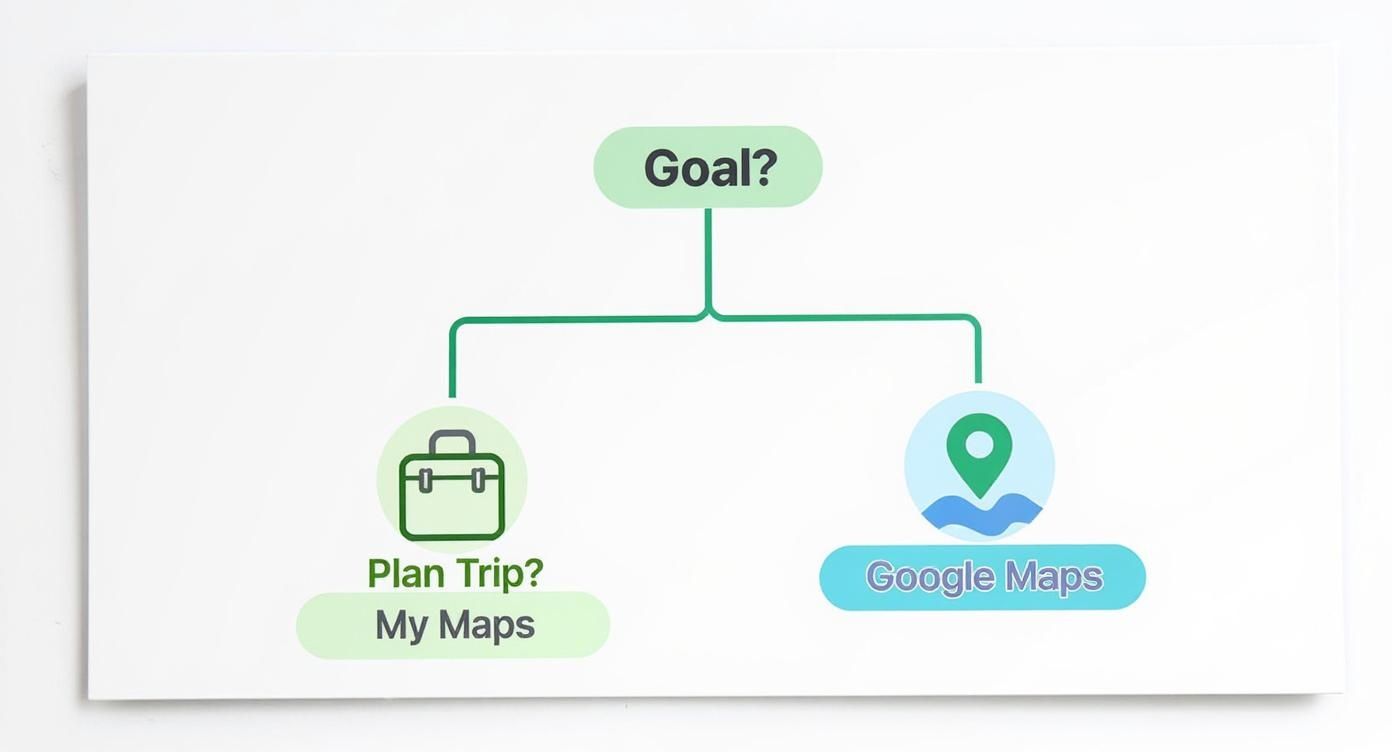
As you can see, for just marking a single spot, the standard Google Maps is your best bet. But if you're planning a journey with multiple stops, you'll want to use Google My Maps.
Advanced Embedding with Elementor Widgets
The standard embed works, but let's be honest—it's a bit vanilla. It doesn't offer much in the way of customization. If you want real control over how your map looks and feels, dedicated WordPress plugins and Elementor widgets are the way to go. These tools often handle the tricky API key stuff for you and open up a world of styling options right inside your page builder.
If you're an Elementor user, a good map widget is your best friend. With one, you can:
- Customize the Style: Match the map's colors to your brand's palette or pick from pre-made styles like a sleek dark mode or a minimalist grayscale.
- Add Custom Markers: Ditch the generic red pin and use your company logo or a unique icon that actually fits your website's theme.
- Control User Interaction: You decide if visitors can zoom, pan, or jump into street view directly from the map on your page.
A well-integrated map should feel like a natural part of your website's design, not just a pasted-in element. Using a dedicated widget gives you the design flexibility to achieve this cohesion, making the user experience much more polished and professional.
Plenty of Elementor addon packs come with powerful map widgets. For a great starting point, check out the features in the free Google Map widget from Exclusive Addons. It lets you dive deep into customization without ever having to touch a line of code.
Using a widget like this not only looks better but can also help your site's performance by loading the map assets more efficiently than a standard iframe.
Still Have Questions About Google Maps Pins?
Even after you get the hang of dropping pins, a few common questions always seem to pop up. Think of this as your quick-reference guide for those "what if" moments, from troubleshooting to account quirks. Let's clear up some of the usual sticking points.
The Great Google Account Debate
One of the first things people ask is if they really need a Google account for all this. The good news? Nope, not for the simple stuff.
You can drop a temporary pin and share its direct link without even being signed in. It’s perfect when you just need to quickly show someone a spot without any fuss.
But the second you want to save that pin to a list, build out a custom map with multiple stops in Google My Maps, or suggest an edit to a public landmark, you'll need to log in. Your Google account is basically the key that unlocks all the personalized and collaborative features.
What to Do About Wrong or Multiple Pins
Ever found a pin for your favorite coffee shop plopped in the middle of a street? It happens. Luckily, you can help fix it.
Just search for the place, click its listing in the sidebar, and look for the "Suggest an edit" option. From there, you can drag the pin to its proper location. Google will review your suggestion, and if they approve it, the map gets updated for everyone. Easy peasy.
Now, what if you're the one adding tons of pins? If you're using Google My Maps for a big project, like mapping out every client location across the state, you should know there are some limits.
A single custom map can have up to 10 layers. Across all those layers, you can add a whopping 10,000 features—that includes your pins, but also any lines or shapes you draw. If you're importing data, each layer can handle up to 2,000 rows. Honestly, for most personal or small business projects, these limits are more than enough.
My Embedded Map is Just a Blank Space!
This is probably the most common technical headache I see. You've perfectly pinned your location, embedded the map on your website, and… nothing. Just a big, empty box. It's frustrating, but the fix is usually simple.
Here are the usual suspects:
- You pasted the code in the wrong place. Make sure you copied the entire HTML embed code from Google Maps and pasted it into an HTML-specific block or widget in your site editor (like the HTML widget in Elementor). A standard text block won't know what to do with it.
- There's a plugin conflict. This is classic WordPress troubleshooting. Try temporarily disabling your other plugins one by one to see if the map suddenly appears. If it does, you've found the culprit.
- You've hit an API limit. If your site gets a lot of traffic, you might be exceeding the free usage limits for the Google Maps API. This usually means you'll need to set up a billing account with Google Cloud and get a proper API key.
Ready to build visually stunning websites with advanced map features and so much more? Exclusive Addons for Elementor gives you a powerful toolkit with over 108 widgets and extensions to bring your designs to life without touching a single line of code. Explore Exclusive Addons today!