
Grid-based design is the unsung hero of modern web development, providing the foundational structure, rhythm, and seamless user experience that define exceptional digital platforms. While the concept of a grid is simple, moving from abstract theory to practical, pixel-perfect implementation can be a significant challenge for designers and developers. Many struggle to translate their creative vision into a functional, responsive layout that captivates users.
This deep dive is designed to bridge that gap. We will dissect seven exceptional grid design websites, analyzing the specific strategies that make them work. We go beyond mere inspiration, providing a clear, actionable blueprint for recreating these sophisticated layouts directly in Elementor. By leveraging the powerful and versatile widgets from Exclusive Addons, you can bring your own structured and visually stunning designs to life with precision and efficiency.
For each example, you’ll find a detailed breakdown, screenshots, and direct links to explore the site firsthand. To truly master grid layouts, consider how they are applied in specific contexts, such as by following the best practices for landing page design to create high-converting pages. Let's deconstruct what makes these layouts great and learn how to build them ourselves.
1. Exclusive Addons' Demo Library: A Masterclass in Practical Grid Application
We’re kicking off our list with our own creation, the Exclusive Addons for Elementor Demo Library, because it serves as a living portfolio of practical and effective grid design. It’s not just a product showcase; it's a resource hub where designers and developers can see how sophisticated grid principles are applied to real-world web layouts. Each demo is a meticulously crafted case study, demonstrating how to organize complex content into clean, intuitive, and visually engaging interfaces.
This library stands out by offering a diverse collection of pre-built templates that go beyond simple column structures. Many of our widgets, especially dynamic ones like the Post Grid, are built using advanced CSS Grid principles. This allows for the creation of modular, filterable, and highly responsive content blocks that adapt seamlessly across all devices, making it a prime example of high-quality grid design websites.
Strategic Analysis
The core strategy behind the demo library is to provide tangible, ready-to-use examples that blend aesthetic appeal with functional clarity. We use a hybrid grid approach: a foundational column-based grid for the overall page structure and more complex, nested grids within individual widgets. This dual-system ensures both large-scale layout integrity and granular control over specific content modules.
Key Insight: The most effective grid systems are often layered. A primary macro-grid defines the main page sections, while micro-grids within components (like cards or galleries) manage the finer details. This creates visual rhythm without sacrificing flexibility.
Replicating the Layouts in Elementor
Each demo in our library is built with Elementor and Exclusive Addons, making replication straightforward for users. The designs are not just inspirational; they are immediately actionable.
- Access: The templates are available to users with a valid Exclusive Addons license. You can browse the full library on our website and import them directly into your Elementor projects.
- Key Widgets: To recreate these layouts, the Post Grid, Filterable Post, and Woo Product widgets are essential. They provide extensive controls for adjusting columns, gap spacing, and responsive breakpoints.
- Practical Tip: Start by analyzing a demo's structure in Elementor's navigator. Pay attention to how sections, columns, and inner sections are used to create the macro-grid. Then, inspect the widget settings to understand how the micro-grid (e.g., column count in a post grid) is configured for different screen sizes.
By deconstructing our demos, you can gain valuable insights into building robust, scalable grid systems. To see how one of our most powerful grid-based tools works, explore our in-depth guide on the Elementor Post Grid widget.
2. Figma: The Blueprint for Digital Grid Systems
Figma has become the industry-standard design tool for a reason: it treats grid systems as a first-class citizen in the digital product workflow. More than just a design canvas, it's a powerful environment for learning, prototyping, and perfecting grid-based layouts before a single line of code is written. It provides designers with the tools to build pixel-perfect, responsive grid structures and hand them off to developers, ensuring design intent is preserved.
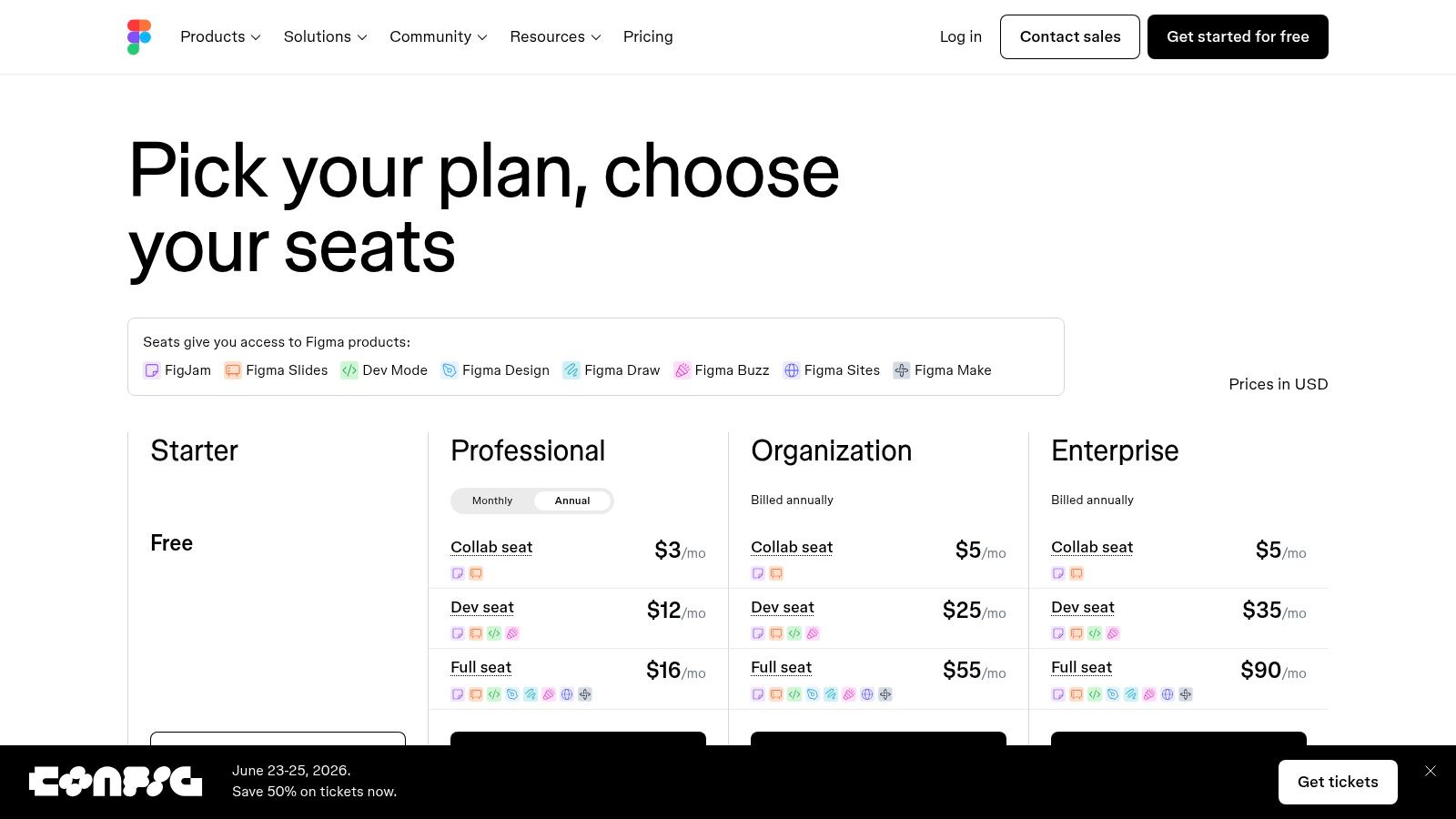
Figma’s strength lies in its comprehensive feature set, from simple column and row guides to the advanced "Grid" flow within its Auto Layout feature. This new addition allows for the creation of complex, two-dimensional layouts (like bento grids) that automatically reflow and adapt. This makes it an essential stop for anyone serious about creating professional grid design websites, as it bridges the gap between static design and dynamic development.
Strategic Analysis
Figma’s core strategy is to embed grid principles directly into the design-to-development pipeline. It encourages designers to think in systems, not just static pages. By providing tools like layout guides, constraints, and auto-layout grids, it forces a disciplined approach to spacing, alignment, and responsiveness. This ensures that the final design is not just visually appealing but also technically feasible and scalable.
Key Insight: Designing with a developer-centric mindset from the start is crucial. Figma’s Dev Mode translates grid properties directly into CSS, minimizing the common misinterpretations that occur during handoff. A well-defined grid in Figma becomes a clear blueprint for developers.
Replicating the Layouts in Elementor
While Figma is a design tool, its grid logic is directly transferable to Elementor. The wireframes and prototypes created in Figma serve as a precise guide for your builds. This workflow is a powerful way to streamline production, and you can learn more about how to create wireframes for websites to enhance this process.
- Access: Figma offers a generous free tier for individuals, with paid plans for teams and advanced features. You can sign up and start designing at www.figma.com.
- Key Features: Use Layout Grids (columns, rows, uniform grid) in your frames to establish the macro-grid. For components, leverage the Auto Layout feature with its new "Grid" wrapping option to mimic CSS Grid behavior.
- Practical Tip: In Figma’s Dev Mode, inspect your grid layout to see the corresponding CSS properties like
grid-template-columnsandgap. Use these values directly in Elementor’s custom CSS controls for a section or container to achieve a pixel-perfect match between your design and the live site.
3. Webflow: Visual Grid Control for Professional Workflows
Webflow earns its spot as a powerhouse platform for designers who want granular control over their grid without writing code from scratch. It’s a visual development environment that treats CSS Grid as a first-class citizen, allowing you to build directly with rows, columns, and gaps. This isn't just about placing elements; it’s about defining complex, responsive grid structures and seeing the results in real-time, making it one of the most hands-on grid design websites for modern web creators.
The platform excels by translating visual actions directly into clean, standards-compliant code. You can visually define grid templates, span elements across multiple cells, and set auto-fit behaviors to create fluid layouts. Webflow's extensive "University" and cloneable templates provide a rich learning environment, demonstrating sophisticated grid applications that users can deconstruct and adapt for their own projects.
Strategic Analysis
Webflow's core strategy is to empower designers with developer-level control in a visual-first interface. The grid tool is not a simplified abstraction; it is a direct manipulation of CSS Grid properties. This allows for the creation of intricate, asymmetrical, and overlapping layouts that are often difficult to achieve with traditional column-based page builders. It encourages a design process where the grid is an integral part of the creative vision, not just a container for content.
Key Insight: Giving designers direct visual access to underlying CSS properties like
grid-template-columns,grid-gap, andgrid-areabridges the gap between design and development. This leads to more intentional, robust, and innovative layouts that are inherently responsive from the start.
Replicating the Layouts in Elementor
While Webflow is a self-contained platform, its grid-based principles are highly transferable to Elementor, especially when combined with the right tools. The focus is on using nested elements and custom CSS to achieve similar precision.
- Access: Webflow offers a free plan to start building, with premium plans required for advanced features, custom domains, and CMS functionality. You can explore cloneable grid examples in the Webflow Showcase.
- Key Widgets: To emulate Webflow’s grid capabilities in Elementor, the Container element is your best friend. Use nested containers with custom widths and alignment settings. For dynamic content, the Post Grid and Filterable Post widgets from Exclusive Addons offer precise column and gap controls.
- Practical Tip: Use Elementor's custom CSS feature to apply
display: gridto a container or section. From there, you can definegrid-template-columnsandgapproperties to create custom grid structures that go beyond standard columns, mimicking the fine-tuned control seen in Webflow projects.
4. Bootstrap's Grid System: The Blueprint for Modern Responsive Design
While not a singular website, the Bootstrap framework’s documentation is an indispensable resource that has fundamentally shaped modern web design. Its famous 12-column, flexbox-based grid system provides a standardized, predictable, and incredibly robust foundation for building responsive layouts. For designers and developers, its official documentation site serves as a comprehensive playbook, offering code snippets and visual examples that demystify how to structure content effectively across any screen size.
The power of Bootstrap's grid lies in its convention-over-configuration approach. It offers a clear, class-based system for defining columns, offsets, and ordering, which accelerates development and ensures consistency, especially in team environments. This makes its documentation one of the most practical examples of grid design websites, as it’s a living library of battle-tested patterns for creating fluid, mobile-first layouts.
Strategic Analysis
Bootstrap's core strategy is to provide a universal language for layout construction. Its predefined breakpoints (from extra small to extra-extra large) give developers a shared framework for discussing and implementing responsive behavior. The 12-column structure is highly divisible (by 2, 3, 4, 6), offering immense flexibility for creating common layouts like two-column sidebars, three-column feature lists, or four-column product grids, all with simple, declarative classes.
Key Insight: Standardization is a powerful design tool. By adopting a proven system like Bootstrap's grid, you can eliminate guesswork and focus on higher-level design challenges, knowing the underlying responsive structure is solid and predictable.
Replicating the Layouts in Elementor
Elementor’s own column-based system shares philosophical roots with frameworks like Bootstrap, making the principles easy to translate. The key is to think in terms of columns and responsive breakpoints, just as you would with Bootstrap.
- Access: Bootstrap is a free, open-source framework. You can explore the complete grid documentation and examples on the official Bootstrap website.
- Key Widgets: The foundational Section and Column elements in Elementor are your primary tools. Use them to create the main macro-grid. For more complex internal grids, widgets like the Post Grid and Gallery from Exclusive Addons allow for similar column-based control within a specific module.
- Practical Tip: To emulate Bootstrap's responsive classes, use Elementor’s responsive controls. Select a column, go to the "Advanced" tab, and set different column widths for Tablet and Mobile devices. For example, to create a three-column layout on desktop that stacks to a single column on mobile, set the desktop column width to 33.33% and the mobile width to 100%.
5. Tailwind CSS: A Utility-First Framework for Precision Grids
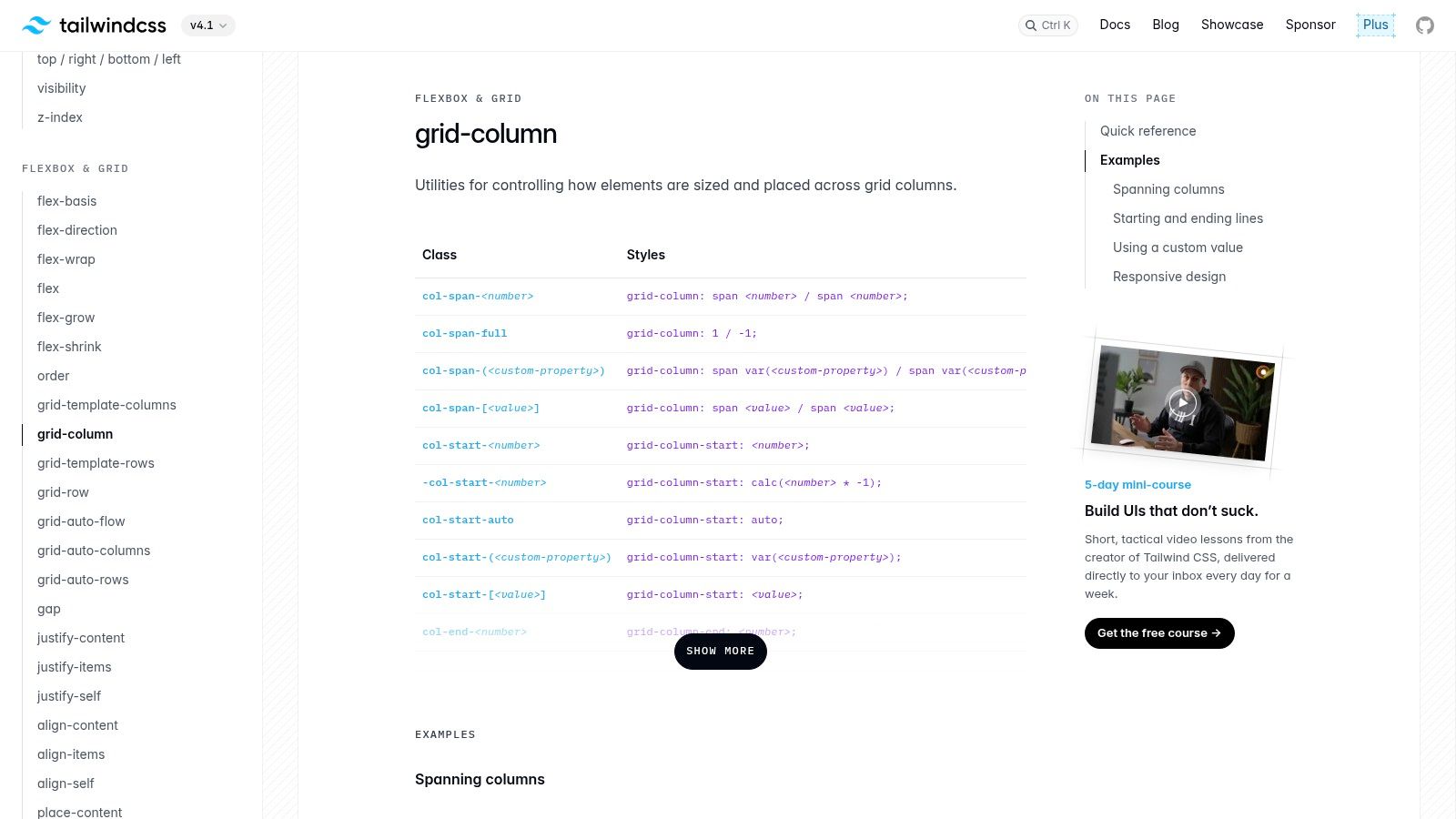
While not a website in the traditional sense, the Tailwind CSS documentation and ecosystem serve as an indispensable resource for understanding and implementing modern grid systems. It’s a utility-first CSS framework that provides low-level classes for building completely custom designs without writing a single line of custom CSS. For designers and developers who want absolute control over their layouts, Tailwind’s approach to grid design is both powerful and educational.
Its documentation is a masterclass in itself, offering interactive examples for everything from simple column layouts to complex, overlapping grids. This makes it one of the most practical grid design websites for learning how to construct sophisticated, responsive interfaces from the ground up. By composing layouts with granular utility classes, you gain an intuitive feel for how CSS Grid properties like grid-template-columns, grid-auto-flow, and gap work together.
Strategic Analysis
The core strategy of Tailwind CSS is to empower developers with a comprehensive toolkit that accelerates the creation of bespoke, production-ready designs. Instead of predefined components, it provides the building blocks. For grids, this means you can define explicit column and row tracks, control element spanning, and set responsive variations directly in your HTML. This utility-first methodology promotes consistency and scalability across large projects.
Key Insight: Building with utilities forces you to think in terms of design systems. Consistent spacing, responsive breakpoints, and repeatable patterns become second nature, leading to more maintainable and visually cohesive layouts. The grid isn't just a layout tool; it's part of a larger, systematic approach to design.
Replicating the Layouts in Elementor
While Elementor abstracts away the need to write CSS, understanding the principles behind Tailwind’s grid utilities can make you a more effective designer. The logic of composing small pieces to build a larger whole is directly applicable within the Elementor editor, especially when using a tool like Exclusive Addons.
- Access: Tailwind CSS is an open-source framework and its documentation is freely available. You can explore all its grid utilities and examples on its official website.
- Key Widgets: To mimic Tailwind's component-based grid approach, use the Post Grid, Team Member, and Logo Carousel widgets. These widgets contain granular controls for columns, spacing, and responsive behavior, allowing you to build modular layouts.
- Practical Tip: Use Elementor's custom CSS feature (available in the Pro version) to apply utility-like styles. For instance, you can create a global class for a specific gap size and apply it to various containers. This mirrors Tailwind’s concept of a consistent spacing scale and makes your designs easier to manage.
By studying the logic presented in the Tailwind CSS documentation, you can elevate your layout-building skills in Elementor, creating more intentional and scalable grid-based designs. Explore the official documentation to see these principles in action at Tailwind CSS Grid Documentation.
6. Grid by Example: The Essential CSS Grid Learning Hub
For those who want to move beyond inspiration and dive into the code, Rachel Andrew’s Grid by Example is an indispensable educational resource. It’s less of a showcase and more of a technical playbook, offering a comprehensive collection of CSS Grid patterns, tutorials, and practical examples. This site serves as a foundational learning tool for any developer or designer looking to master the technical underpinnings of modern grid systems.
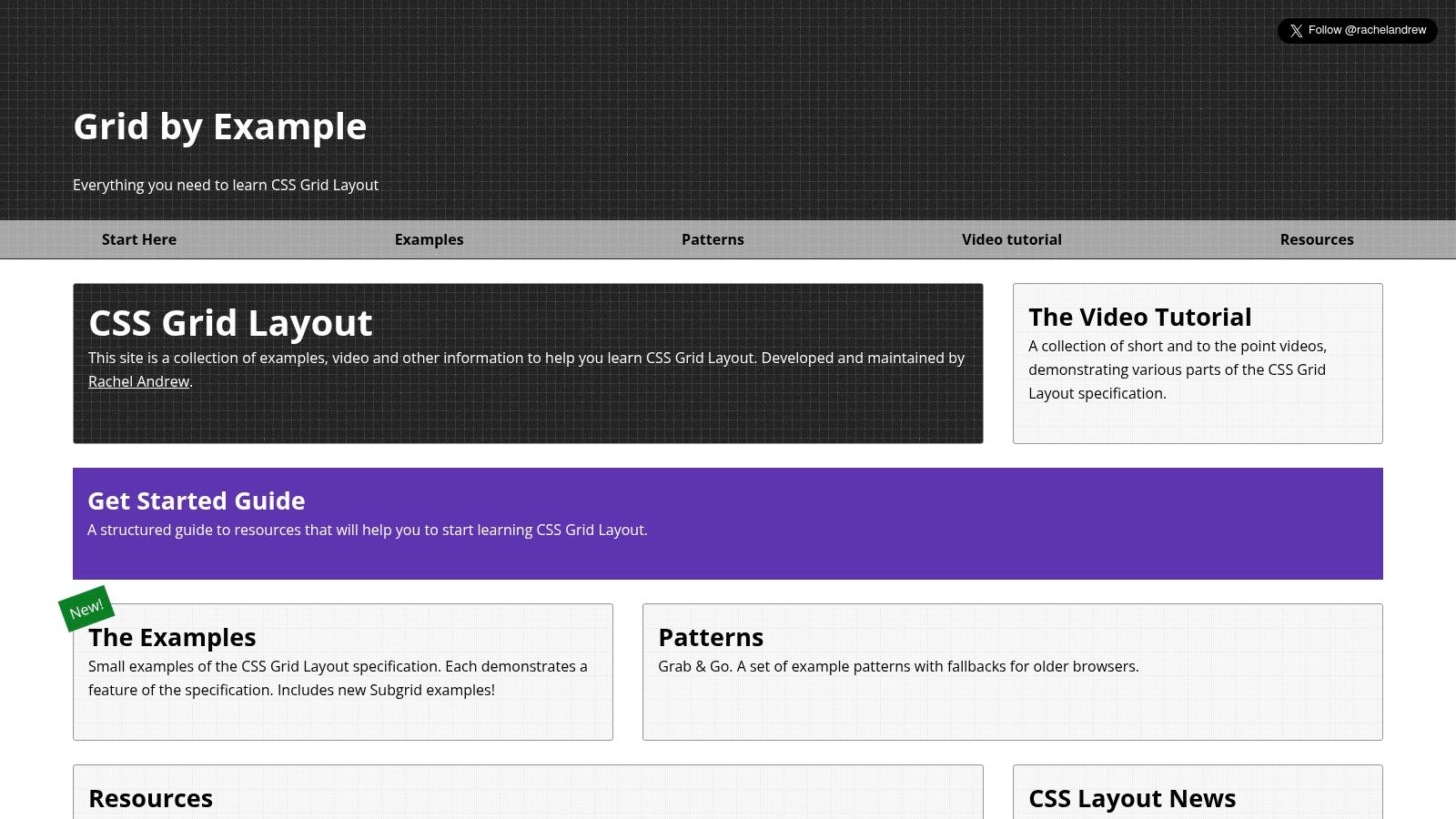
The platform’s strength lies in its clarity and focus. Each example is a self-contained lesson, complete with code snippets, browser support information, and a clear explanation of the principles at play. It strips away the design flair to focus purely on the structural mechanics, making it one of the most effective grid design websites for hands-on learning and problem-solving.
Strategic Analysis
Grid by Example’s strategy is rooted in educational empowerment. It demystifies CSS Grid by breaking it down into small, digestible patterns that are easy to understand and implement. The site avoids overwhelming users with complex projects, instead providing "grab and go" solutions for common layout challenges like card grids, asymmetrical layouts, and full-page structures. This pattern-based approach allows users to learn incrementally and apply concepts directly to their own work.
Key Insight: Mastering grid design requires understanding the core properties first. By learning foundational patterns (like
grid-template-columnsorgrid-auto-flow), you build a mental toolkit that allows you to construct virtually any layout from scratch, rather than relying solely on pre-built frameworks.
Replicating the Layouts in Elementor
While Grid by Example focuses on raw CSS, its principles are directly applicable within Elementor’s robust layout controls. Understanding these concepts will supercharge your ability to build custom, high-performing grids without writing a single line of code.
- Access: The website is completely free and open to everyone. You can browse all examples and copy code directly from gridbyexample.com.
- Key Concepts: Pay close attention to examples using
frunits,minmax(), andgrid-gap. These concepts translate directly to Elementor’s column and section settings, where you can define flexible widths and consistent spacing. - Practical Tip: Use the "Holy Grail Layout" example on the site as a mental model. Try to recreate it in Elementor using a main Section with three columns. Then, add a Header and Footer section above and below it. This exercise is a fantastic way to understand how high-level page architecture is built and is a cornerstone of creating the best layout for your websites.
7. Creative Market: A Marketplace for Production-Ready Grid Systems
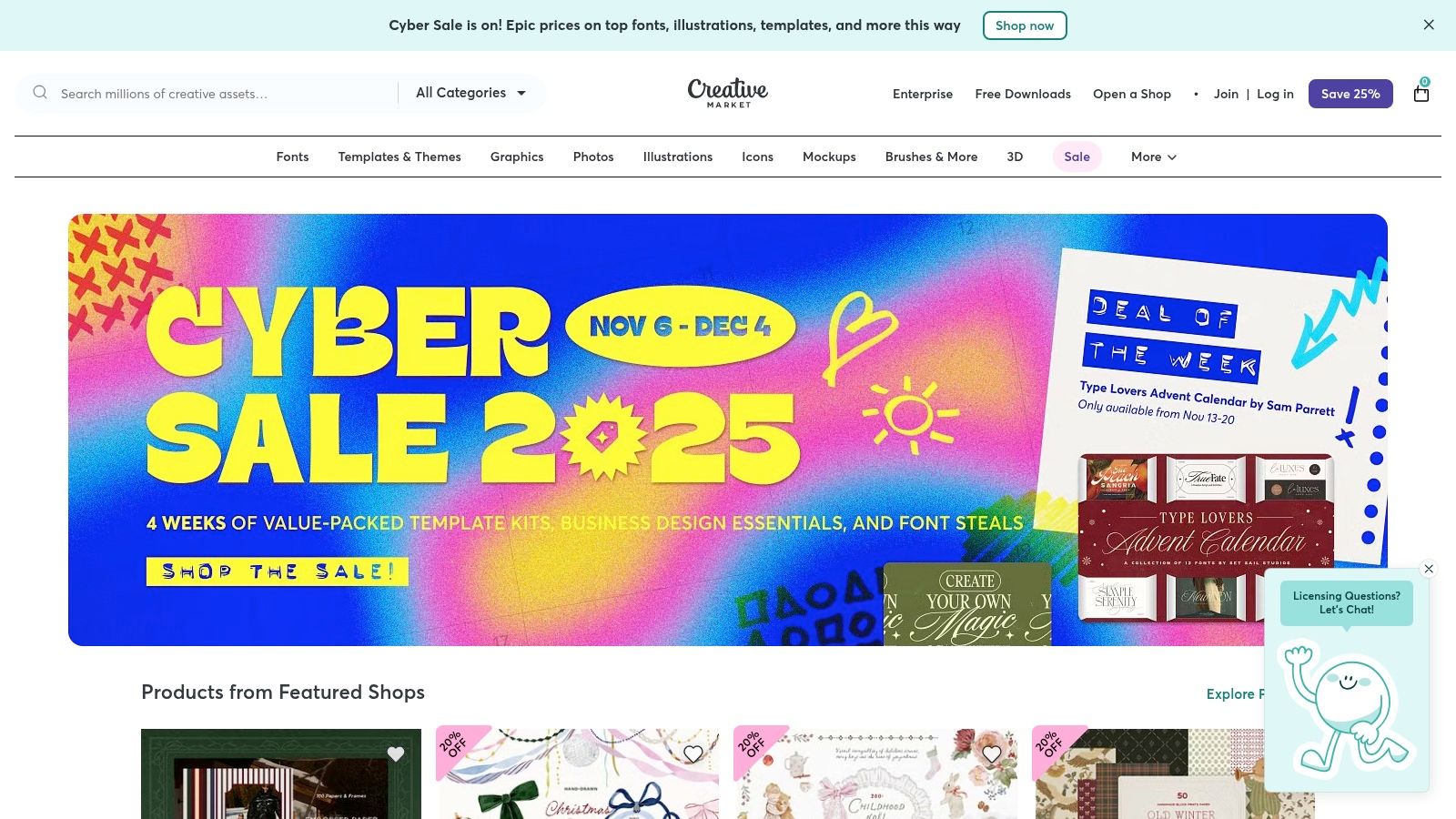
While our previous examples focus on inspiration and analysis, Creative Market offers a shortcut: a massive marketplace for production-ready UI kits, dashboards, and design systems. This platform is an essential resource for designers and developers who need professionally designed, grid-based assets that can be deployed quickly. It’s a goldmine for finding pre-built layouts where the complex work of establishing a solid grid structure has already been done.
Creative Market stands out by providing an incredible diversity of styles and formats, including files for Figma, Sketch, and Adobe XD. You can find everything from minimalist mobile app kits to complex data-driven dashboards, all built on robust grid foundations. For those looking to accelerate their workflow, these assets serve as high-quality starting points, making it one of the most practical destinations for sourcing excellent grid design websites and components.
Strategic Analysis
The core strategy of Creative Market is aggregation and accessibility. It connects talented designers with a broad audience, creating a space where best practices are packaged into commercial products. The grid systems found in these kits are typically based on popular standards like the 8-point grid or established column structures (e.g., 12-column layouts for dashboards), ensuring they are both versatile and familiar to most designers.
Key Insight: Leveraging pre-built, grid-aligned design systems dramatically reduces project setup time. Instead of building from scratch, you can adapt a proven system, ensuring consistency and quality while focusing your energy on customization and content.
Replicating the Layouts in Elementor
While these UI kits aren't directly importable into Elementor, they serve as high-fidelity blueprints for your builds. You can use them as a visual guide to recreate sophisticated layouts with precision.
- Access: Assets are available for purchase on the Creative Market website, with prices varying by creator and license type. Always check reviews and file compatibility before buying.
- Key Widgets: To replicate dashboard layouts, the Chart, Data Table, and Info Box widgets are invaluable. For mobile UI kits, using Elementor's nested sections and flexbox controls can help you match the component spacing and alignment.
- Practical Tip: Use a browser extension like "Designer Tools" to overlay a grid on your Elementor page. Measure the column widths, gutters, and vertical spacing in the UI kit's source file (e.g., Figma) and apply those exact values in your Elementor section and widget settings for a pixel-perfect recreation.
By using these professional kits as a reference, you can elevate your own designs and learn more about creating good web page layouts that are both functional and visually appealing.
Grid Design Websites: 7-Tool Comparison
| Tool | Implementation Complexity 🔄 | Resource Requirements ⚡ | Expected Outcomes 📊 | Ideal Use Cases ⭐ | Key Advantages / Tips 💡 |
|---|---|---|---|---|---|
| Exclusive Addons | 🔄 Medium — depends on Elementor (Pro for advanced features) | ⚡⚡ Low–Medium — WordPress host + Elementor; optimized asset loading | Polished, high-performance WordPress sites with extensive widget set | Agencies, designers, WooCommerce stores, rapid site builds | Large widget/template library; disable unused widgets; verify Elementor/Pro compatibility |
| Figma | 🔄 Low–Medium — intuitive UI; Grid auto-layout in beta | ⚡⚡ Low — browser-based; paid seats for team features | End-to-end design → prototype → dev handoff with responsive grids | UI/UX teams, prototyping, collaborative design & handoff | Use community templates; expect Grid beta changes; budget for seats when needed |
| Webflow | 🔄 Medium — visual CSS Grid editor; steeper for CMS/interactions | ⚡⚡⚡ Medium–High — hosting/CMS plans for production sites | Publishable, standards-based responsive sites or exportable clean code | Designers/agencies who want to ship sites without hand-coding | One-click publish or export; plan for hosting/advanced feature costs and learning curve |
| Bootstrap | 🔄 Low — opinionated 12‑column grid and utility classes | ⚡ Low — free, open-source; dev setup for customization | Predictable, fast responsive layouts with broad compatibility | Dev teams needing conventions and rapid implementation | Use Sass variables and themes to avoid default “Bootstrap-y” look |
| Tailwind CSS | 🔄 Medium — utility-first approach; requires conventions | ⚡⚡ Medium — build tooling (JIT/purge) but small runtime | Highly customizable, consistent, and refactorable responsive grids | Teams preferring utility-first systems and rapid iteration | Establish utility conventions; use JIT/purge and plugins to keep bundles small |
| Grid by Example | 🔄 Low — example-driven learning and copy‑paste patterns | ⚡ Low — documentation and demos; no tooling required | Clear, copyable grid patterns, fallbacks and practical explanations | Designers/developers learning CSS Grid or solving layout problems | Use as reference/snippets; adapt examples before production |
| Creative Market | 🔄 Low — marketplace workflow (buy → download → customize) | ⚡⚡ Low–Medium — paid assets; licensing considerations | Faster setup with production-ready, pre-gridded UI kits | Designers needing ready-made screens or agencies accelerating delivery | Check previews/reviews and update/support terms before purchase |
Build Your Own Masterpiece with the Right Grid and Tools
Throughout this showcase of exceptional grid design websites, a clear pattern has emerged: a deliberate, well-executed grid is not just a design trend, but the very backbone of a professional, intuitive, and high-performing user experience. We've journeyed from the foundational principles demonstrated by frameworks like Bootstrap and Tailwind CSS to the visual, no-code powerhouses like Webflow and the inspirational layouts found on Creative Market. Each example reinforces the idea that structure is the key to creativity.
The most successful designs treat the grid as an invisible guide that brings order to chaos, ensuring every element has a purpose and a place. This structured approach, as we've analyzed, directly impacts usability, readability, and the overall aesthetic appeal of a site. It's the silent partner that makes complex information feel simple and navigation feel effortless.
Key Takeaways for Your Next Project
As you move from inspiration to implementation, remember these core principles distilled from the examples we've explored:
- Consistency is Crucial: A consistent grid system, with predictable spacing and alignment, builds user confidence. Whether you’re using a strict columnar grid or a more modular layout, maintaining that system across all pages creates a cohesive and professional feel.
- Responsiveness is Non-Negotiable: Your grid must be fluid. Plan for how columns will stack, how modules will reflow, and how typography will adapt across devices. A grid that breaks on mobile is a design that has failed its primary function.
- Whitespace is an Active Element: The space between your grid items is just as important as the items themselves. Use gutters and margins strategically to reduce cognitive load, create visual hierarchy, and guide the user's eye through the content.
- Tools Empower, They Don't Dictate: While tools like Figma help you visualize the perfect grid and frameworks like Bootstrap provide a solid starting point, the ultimate creative control lies with you. Your design goals should inform your choice of grid system, not the other way around.
Your Actionable Path Forward
Translating these concepts into a tangible website is your next step. Begin by wireframing your layout, paying close attention to the grid structure before you even think about colors or fonts. Consider the user journey and how your grid will support the flow of information. For a deeper dive into foundational design principles that complement a strong grid, reviewing these 10 essential website design best practices will ensure your finished project is both beautiful and highly functional.
With a solid plan in place, it's time to build. Elementor, combined with the right addons, provides the perfect environment for this. The powerful widgets within Exclusive Addons, such as the Post Grid, Filterable Gallery, and Advanced Tabs, are specifically designed to give you precise control over your layouts without needing to write a single line of code. You can easily replicate the complex, asymmetrical, and perfectly responsive grid design websites we've admired, turning abstract ideas into interactive realities.
Ready to stop dreaming and start building? Unlock your full creative potential with Exclusive Addons. Our powerful and flexible widgets are engineered to help you create sophisticated, pixel-perfect grid layouts directly within Elementor, making it easier than ever to build the stunning websites you've envisioned. Explore Exclusive Addons today and take control of your design.