
Dropping a quick pin in Google Maps is second nature for most of us. On your phone, it's a simple long-press. On a desktop, it's just a click. Easy.
But that's just scratching the surface.
Beyond Simple Directions: Mastering Map Pins
Knowing how to drop a pin is one thing; truly mastering them for business, travel, or personal projects is another level entirely. This guide is for those who want to move past the basics. We're diving deep into the full spectrum of possibilities—from quickly sharing a meeting point on the fly to building out detailed, multi-layered custom maps with Google My Maps.
Whether you're a small business owner trying to put all your locations on the map, a traveler planning the ultimate itinerary, or just someone trying to organize your favorite local spots, I'll show you some actionable techniques. The ability to add pins to Google Maps can transform a simple navigation tool into a dynamic canvas for storytelling and organization.
Why Mastering Map Pins Actually Matters
Look, for businesses and individuals alike, getting good at adding and managing map pins offers some real-world advantages. It’s not just about marking a location; it’s about providing context, making things easier for people, and creating a much richer experience.
-
For Businesses: A well-placed pin doesn't just guide customers to your door; it can show your operating hours and feature glowing reviews. If you're really serious about local visibility, learning to properly manage and optimize your Google Business Profile is absolutely crucial.
-
For Personal Use: Imagine creating custom travel maps with pins for every hotel, restaurant, and sight. You could map out hiking trails or even just build a list of your favorite local haunts to share with friends. It turns a static map into your own personalized guide.
The Power of a Verified Pin
Since it first launched, Google Maps has grown into a massive platform. We're talking over 2.2 billion monthly active users and more than 200 million business listings—each one a pin that a business can, and should, customize.
Here's a number that should get your attention: verified businesses can see up to five times more engagement than unverified ones. That makes proper pin placement an essential tool for anyone trying to get noticed locally.
Sometimes, you don't need to build out a whole custom map with fancy layers and a dozen different icons. You just want to quickly mark a spot. Maybe you found a great new coffee shop, a perfect picnic location, or just need to send a friend the exact meeting point.
This is the most fundamental skill you can learn in Google Maps, and thankfully, it only takes a moment to master on whatever device you have handy.

On Your Smartphone (iOS & Android)
Let's be real, you're probably out and about when you discover something worth saving. Using your phone is the fastest way to drop a pin right then and there.
The process is pretty much identical whether you're on an iPhone or an Android. Just open up your Google Maps app, find the spot you want to mark, and then press and hold your finger on the screen.
Instantly, a red pin will appear. At the bottom of your screen, a little info card will pop up with the address or coordinates. From there, you've got options: save it to a list (like "Places to Visit"), give it a custom label, or share it directly with someone.
On Your Desktop or Laptop
Dropping a pin from your computer is just as easy and sometimes even better for planning. The precision of a mouse click is perfect when you're doing research—say, mapping out potential apartments and comparing their distance to the office or the nearest park.
Head over to the Google Maps website. Zoom in on the location you want to pin and just click once. A small gray pin will show up, and just like on mobile, an information box will appear at the bottom.
Pro Tip: The moment you click on the map, look at your browser's address bar. The URL instantly updates to include the exact coordinates of your pin. You can copy and paste that URL to share a direct, pinpoint-accurate link with anyone.
This single-click method is a lifesaver for planning a road trip with a few unofficial stops or for sending a client the exact entrance to a sprawling office park, not just the street address.
Once you get the hang of these basics, you can start thinking bigger. For those looking to get these maps onto their own websites, learning how to add a pin to a Google Map with tools like Elementor is the natural next step, building directly on these simple skills.
Pin Placement Methods at a Glance
Choosing the right way to drop a pin really depends on what you're trying to accomplish. Are you just sending a quick location to a friend, or are you building a detailed map for your business website? This table breaks it down.
| Method | Best For | Key Features | Technical Skill |
|---|---|---|---|
| Quick Pin (Mobile/Web) | Instantly saving personal spots, sharing a single location with friends. | Fast, intuitive, works on any device. | Beginner |
| Google My Maps | Creating multi-pin custom maps, planning trips, simple business locators. | Layers, custom icons, easy sharing, import from spreadsheets. | Beginner/Intermediate |
| Google Maps API | Dynamic maps on websites, real-time data, complex business applications. | Fully customizable, programmatic control, integrates with other services. | Advanced (Developer) |
| WordPress Plugins (e.g., Exclusive Addons) | Embedding custom maps on a WordPress site without code. | User-friendly interface, custom styling, multiple marker support. | Intermediate |
As you can see, Google provides a solution for nearly every scenario. Start with the quick pin, and as your needs grow, you can graduate to the more powerful tools.
When you need to plot out more than just a single spot on a map, it’s time to move past a quick pin drop and dive into a full-blown custom project. This is exactly what Google My Maps was built for. It’s a powerful and totally free tool that lets you build rich, interactive maps for just about anything—planning a trip, showing off business locations, or even creating a visual guide for your neighborhood.
Let's walk through building a map from scratch. Imagine we're creating a "Weekend Guide to Local Breweries." The goal isn't just to drop a few pins; we want to create something that’s genuinely useful, looks great, and is worth sharing with friends or embedding on a local blog.
Starting Your Project in Google My Maps
First things first, head over to Google My Maps and hit “Create a new map.” You’ll see a fresh, blank canvas ready for your ideas. Give your map a proper title, like our "Weekend Guide to Local Breweries," and maybe add a quick description. Trust me, taking a second to do this now will save you a headache later when you have a dozen different maps saved.
Now for the fun part: adding your spots. Use the search bar to find your first brewery. A temporary green marker will pop up. Just click “Add to map,” and that pin becomes a permanent part of your project. Go ahead and repeat this for every brewery on your list. Just like that, you're starting to add pins to Google Maps in a much more organized way.
Customizing Pins for Clarity and Style
A map filled with identical blue pins gets the job done, but it’s pretty boring, right? Customization is what really brings a My Map to life. Click on any pin you’ve placed, and look for the small paint bucket icon labeled "Style." This is where the magic happens.
Instead of a generic teardrop, you can pick from a huge library of icons. For our brewery map, a quick search for a beer mug icon makes perfect sense. Instantly, the map has more personality and is easier to understand at a glance. You can also play with the pin colors, which is incredibly handy for categorizing your locations.
For instance, you could set up a simple color key:
- Green pins: Breweries with dog-friendly patios.
- Yellow pins: Spots that have regular live music.
- Blue pins: Breweries known for having a great food menu.
This kind of color-coding lets people see what they’re looking for without having to click on every single pin. It's a small touch that makes a huge difference in the user experience.
Key Takeaway: Don't just add pins; give them meaning. Using custom icons and a consistent color scheme turns a simple list of locations into a smart, easy-to-read visual guide that tells a story.
Beyond just looks, you can beef up each pin with more details. Click the little pencil icon in a pin's info box to add your own notes. You could mention your favorite beer on tap, drop in a link to their menu, or even upload a photo from your last visit. This extra layer of detail provides a ton of value to anyone using your map.
Organizing with Layers and Sharing Your Creation
As you add more and more pins, your map can start to feel a bit crowded. That's where layers come in. Think of them as transparent sheets stacked on top of each other, with each sheet holding a different category of pins. For our brewery guide, you might create one layer for "Downtown Breweries" and another for "Suburban Taprooms."
This keeps everything neat and makes the map way easier to navigate. Viewers can even toggle the layers on and off, letting them focus only on the information they care about. It’s an absolute must for managing more complex maps with dozens or even hundreds of locations.
Once your masterpiece is ready, it's time to show it off. Click the "Share" button. You can create a public link to send directly to people or—even better—get an embed code. This little snippet of code lets you place your interactive map right onto your website or blog, turning all your hard work into a fantastic piece of content for your audience.
Managing Multiple Pins with Data Imports
Placing a handful of pins manually is one thing. But when you're dealing with dozens, or even hundreds, of locations? That's a whole different ballgame. Forget tedious manual placement—that's a surefire way to waste hours. To manage locations at scale, the real power comes from importing your data directly.
This is the exact approach a marketing team would use to plot all of its client locations for a regional campaign, or how a logistics company could visualize its entire delivery network in one go. The secret is simply getting your data organized correctly in a spreadsheet, using a common format like CSV or Excel.
The whole process is pretty straightforward. You build the map, customize it, and then share it.
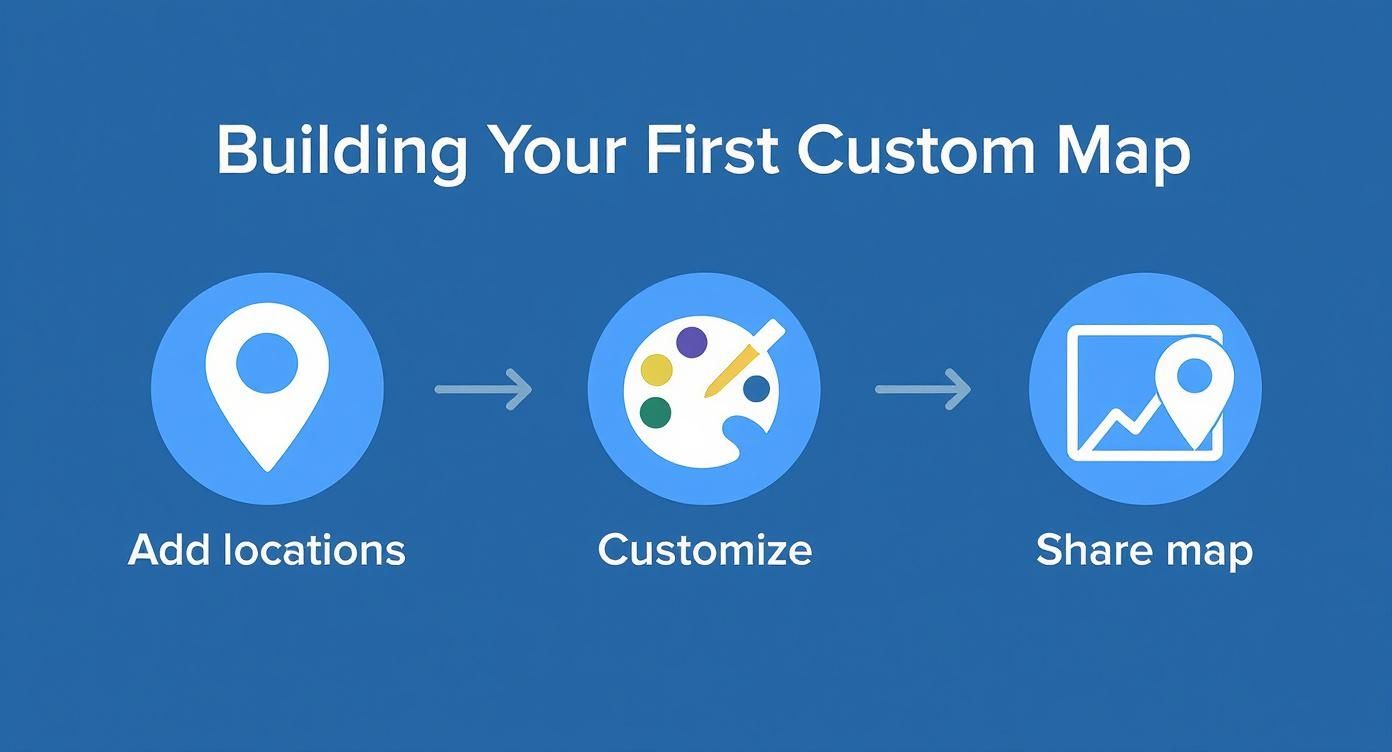
As the diagram shows, the foundation of a great custom map is well-structured location data. That's exactly what the import process is designed to streamline.
Preparing Your Spreadsheet for Import
Before you can upload anything, you need to make sure your spreadsheet is structured in a way Google My Maps can actually read. Think of it this way: each row is a single pin on your map, and each column is a piece of information about that pin.
At a minimum, your sheet needs columns for location data, like:
- Address: A complete street address works best.
- Latitude and Longitude: For pinpoint accuracy, especially for locations without a traditional address.
- Place Name: This is the title that will pop up when someone clicks the pin.
You can also add extra columns for more detail. Things like "Business Hours," "Contact Person," or "Service Type" will show up in the pin's description box. Once your file is ready, you'll just use the "Import" option inside a Google My Maps layer to upload it.
Key Takeaway: The single most common reason an import fails is messy address formatting. Make sure your address data is clean and consistent. Either put the street, city, state, and zip code in separate columns or combine them into a single, perfectly formatted column.
It's a skill worth mastering. Google Maps covers over 250 countries and territories, and in the US alone, more than 270 million people use it every month. With over 70% of smartphone users opening the app weekly, this is your direct line to a massive audience. You can dig into more of the platform's incredible usage stats on Center.ai.
Exporting Your Custom Map Data
Once your map is built, your data isn't trapped. Google My Maps lets you export your entire map—or just specific layers—as a KML (Keyhole Markup Language) file. This is incredibly handy for a few reasons. You can archive your data, back it up, or share it with colleagues who might be using other GIS software like Google Earth.
Imagine a research team at the end of a project. They can export their field data map to create a permanent, shareable record of all their findings. It's a simple feature, but it makes your data much more portable.
For a deeper dive into more advanced strategies, check out our guide on how to add multiple locations to Google Maps.
Embedding Your Map on a Website
So, you've built your custom map. That's a fantastic start, but its true power isn't unlocked until you share it with the world. When you display your meticulously crafted map on a website, it transforms from a personal project into an invaluable, interactive tool for your visitors.
This is especially true for businesses trying to showcase multiple locations or bloggers creating a visual travel guide. The good news is that embedding your map is surprisingly straightforward.
Getting the Embed Code
The most common method is grabbing a simple HTML code snippet directly from Google My Maps and pasting it into your website’s editor. This works for just about any platform you can imagine, from Squarespace to a completely custom-built site.
Once you’ve put the finishing touches on your custom map, look for the "Share" button. In the options that pop up, you'll find a choice to "Embed on my site." Clicking this generates what's called an <iframe> code. This small piece of HTML is all you need to bring your map to life on your webpage.
Just copy this code and head over to the page on your website where you want the map to appear. In your page editor, switch to the HTML or code view and paste the snippet right where you want it. Save your changes, and voilà—your interactive map will appear, complete with all your custom pins, layers, and descriptions.
Styling and Customization in WordPress
If you’re a WordPress user, especially one who uses a page builder like Elementor, you have a lot more control over your map’s look and feel. While the standard embed code works just fine, dedicated plugins can offer a much richer and more integrated experience. These tools often provide styling options that go far beyond what the basic embed can do.
For example, you can use a dedicated widget to control map dimensions, set specific zoom levels, and even tweak color schemes to match your brand's aesthetic perfectly. Many of these plugins also offer performance benefits like lazy loading, which stops the map from slowing down your site's initial load time.
A well-integrated map does more than just show locations; it enhances the user experience. By styling your map to fit your site's design, you create a seamless and professional look that builds trust with your visitors.
Using a plugin also just makes the whole process easier. Instead of fiddling with code, you get a visual interface. The free Google Map widget from Exclusive Addons, for instance, lets you drop in a map and adjust all the settings directly within the Elementor editor, making it incredibly simple to add pins to Google Maps right on your site.
The ability to add pins is a critical tool, particularly for small businesses. In fact, 74% of Google Maps users are small businesses with fewer than 50 employees. The platform's advertising features, like promoted pins, highlight just how significant this functionality is, contributing to an estimated $11.1 billion in revenue in 2023. You can explore more about the platform's economic impact in this comprehensive Google Maps statistics report.
Ensuring Mobile Responsiveness and Performance
Finally, don't forget to check how your embedded map looks and functions on mobile devices. A map that works perfectly on a desktop can quickly become clunky and difficult to use on a smaller screen.
While the standard <iframe> code from Google is generally responsive, it's always a good idea to test it yourself. If you’re using a WordPress plugin, dig into the mobile-specific settings. The best tools will let you adjust the map’s height and width for different screen sizes, ensuring a great experience for everyone, no matter what device they're using. This little bit of extra attention to detail will make your embedded map a genuinely helpful part of your website.
Of course. Here is the rewritten section, crafted to sound completely human-written and natural, following the provided style guide.
Got Questions About Adding Map Pins?
Whenever I'm working with map pins, a few questions always seem to pop up. Whether you're worried about privacy or just trying to figure out why your carefully placed pins have vanished, getting a straight answer can save you a world of headache. Let's run through some of the most common issues I see people run into when they add pins to Google Maps.
One of the biggest concerns is privacy. When you create a custom map in Google My Maps, is it instantly visible to the whole world? Thankfully, no. By default, every new map you start is private and only visible to you. You have to go in and intentionally change the sharing settings if you want to make it public or share it with specific people.
Can I Add Multiple Pins to One Map?
You sure can, and honestly, you absolutely should for anything beyond a few spots. This is exactly what Google My Maps was built for. You can drop hundreds of pins onto a single map, group them into different layers, and customize every single one. It’s the perfect tool for creating a guide to local parks or mapping out all your client locations for the year.
A classic mistake I see is people trying to save a bunch of separate dropped pins right on the main Google Maps interface. You can save them to lists, but it gets messy fast. For any project with more than a handful of locations, do yourself a favor and build a dedicated My Map. It’s the right approach.
Another one I hear all the time is, "Why aren't my saved pins showing up?" This almost always comes down to one of two simple things:
- You're logged into the wrong Google Account. It happens to the best of us. Just double-check that you're signed into the same account you used when you saved the pins.
- The list or layer is turned off. In Google Maps, make sure your saved places list is set to be visible. If you're in My Maps, check that the little box next to the layer with your pins is ticked.
Is There a Limit to How Many Pins I Can Add?
For most projects, you're unlikely to hit the ceiling, but it's good to know the numbers. A single Google My Map can hold up to 10,000 total items—that includes your pins, any lines you draw, or shapes you create.
Your map is also broken down into layers, and you can have up to 10 layers in one map. If you're importing data from a spreadsheet, each layer can handle up to 2,000 points.
These limits are pretty generous. They're more than enough for even ambitious projects, like mapping every library in a state or planning a massive cross-country road trip. If you do find yourself hitting those limits, it's usually a good sign that your map has gotten too complex and it's time to split your project into a few smaller, more focused maps.
Ready to show off those beautifully pinned maps on your WordPress site without fiddling with code? Exclusive Addons gives you a powerful and intuitive Google Map widget for Elementor, putting you in full control of styling and performance. Start building better maps with Exclusive Addons today!