
The short answer for the best image format for web? It's increasingly WebP. It simply offers a better balance of quality and file size than old standbys like JPEG and PNG.
Of course, it's not quite that simple. For specific needs, JPEG is still a workhorse for photos, PNG is king for transparency, and you can't beat SVG for crisp, scalable logos and icons.
Why Choosing The Right Format Matters
Picking an image format used to be a straightforward choice between JPEG and PNG. But today's web demands a more thoughtful approach, one where site performance and user experience are front and center. Making the right call here can slash your page load times, which has a direct line to keeping users engaged and even boosting your search engine rankings.
So, how do you decide? It's a balancing act between a few key factors:
- Quality: How much detail does the image keep after it’s been compressed?
- File Size: How big is the file? This directly impacts how fast it will load.
- Features: Do you need special features like a transparent background or animation?
- Compatibility: Will the format actually display correctly on all major web browsers?
Quick Guide to Web Image Formats
To help you get a quick handle on this, the table below breaks down the most common formats. It’s a great starting point for making a fast decision based on what you’re trying to accomplish.
| Format | Ideal Use Case | Compression | Transparency | Animation |
|---|---|---|---|---|
| JPEG | Photographs, complex images | Lossy | No | No |
| PNG | Graphics with sharp lines, transparency | Lossless | Yes | No |
| WebP | All-purpose (photos, graphics) | Lossy & Lossless | Yes | Yes |
| AVIF | Next-gen photos, high-quality graphics | Lossy & Lossless | Yes | Yes |
| SVG | Logos, icons, simple illustrations | Vector (Lossless) | Yes | Yes (CSS/JS) |
While JPEG has been the go-to for photos for decades, its throne is wobbling. As of early 2025, usage data shows WebP is now on 16.8% of all websites. That’s a massive jump, and it’s all thanks to its efficiency. By comparison, JPEG still hangs on at over 75% of sites, mostly due to its long legacy, but its larger file sizes are a serious performance drag.
The numbers don't lie: WebP images are often 25-35% smaller than JPEGs of similar quality. That's a huge win for loading speed.
The one-size-fits-all approach is dead. The "best" image format is the one that perfectly serves your specific content—whether it's a rich photograph, a sharp logo, or an animated graphic—while keeping your site lightning-fast.
Getting this right is especially critical for e-commerce. If you're running an online store, this comprehensive guide to image optimization for Shopify stores is packed with useful insights. Building on this foundational knowledge will empower you to make smarter, context-aware decisions as we dive deeper into each format.
To really get a handle on the best image format for your website, you have to look "under the hood" at the tech that makes them tick. Every image format comes down to two basic ideas: how it shrinks data down and whether it’s made from tiny pixels or slick mathematical lines. Getting these fundamentals right is what separates an amateur from a pro when it comes to web performance.
The first big choice you'll face is image compression, which is just a fancy way of saying "making the file smaller." This is where that constant battle between quality and speed plays out, and it's handled in two very different ways.
Lossy vs. Lossless Compression
Lossy compression is a bit of a gambler. It gets you tiny file sizes by permanently throwing away some of the image data. Think of it like a really good summary of a long book—you get the main plot and characters, but a lot of the flowery, descriptive language is gone for good. This is a huge win for page load times.
Formats like JPEG and lossy WebP are masters of this. When you save a JPEG, the algorithm is smart enough to toss out details the human eye probably won't miss anyway. The catch? If you keep re-saving a lossy image, the quality gets worse and worse with each save.
On the flip side, lossless compression shrinks the file size without ditching a single byte of the original data. It’s like zipping a folder on your computer; everything inside is squeezed down, but when you unzip it, it’s all there, perfectly intact.
This is the method used by formats like PNG and lossless WebP. Because absolutely no data is lost, they're perfect for images where every detail counts, like graphics with sharp text or crisp lines. The trade-off, of course, is that the file sizes are usually bigger than their lossy cousins.
At its core, the decision is a balancing act. Lossy gives you incredible speed but sacrifices perfect fidelity. Lossless delivers that perfect fidelity but can slow things down.
Raster vs. Vector Graphics
The other critical fork in the road is how the image is actually built. This is what separates images made of pixels from those drawn with code, and it's a completely different way of thinking about your visuals.
Here’s how the two stack up:
-
Raster Images: These are the images you see every day. JPEG, PNG, GIF, and WebP are all raster formats. They're constructed from a grid of tiny squares called pixels, kind of like a digital mosaic. Since they have a fixed number of pixels, they start to look blurry or "pixelated" if you try to stretch them bigger than their original size.
-
Vector Images: This world is dominated by SVG (Scalable Vector Graphics). Instead of a pixel grid, SVGs are built from mathematical equations that define points, lines, and curves. Because they’re just a set of instructions, you can scale them up or down to any size—from a tiny favicon to a giant billboard—and they will stay perfectly sharp.
This fundamental difference is why SVGs are the undisputed champion for logos, icons, and any simple illustration that needs to look clean on every screen, no matter the resolution. They're not built for complex, photorealistic images—that's where raster formats truly shine.
When you're dealing with complex images—think photographs or detailed graphics—raster formats are your bread and butter. Unlike vectors, which are drawn from neat mathematical formulas, rasters are built from a simple grid of pixels. This structure is what makes them perfect for capturing the rich colors and subtle tonal shifts you see in real-world images.
But here's the catch: not all raster formats are created equal.
Each one offers a different trade-off between file size, visual quality, transparency support, and even animation. Getting a handle on these differences is the key to making your website perform well without sacrificing the visual pop of your design.
JPEG: The Universal Workhorse
For decades, JPEG (Joint Photographic Experts Group) has been the undisputed king for photos on the web. Its real magic is its lossy compression algorithm, which is brilliant at shrinking the file size of complex, multi-tonal images. This has been a cornerstone of fast-loading websites since the early days.
But that efficiency comes at a price. The compression is "lossy," meaning some image data is thrown away forever to get that smaller file. You can often shrink a JPEG quite a bit with little noticeable drop in quality, but get too aggressive, and you'll start seeing ugly artifacts, blockiness, and blur.
The biggest dealbreaker for JPEG? It has zero support for transparency. If you need an image with a see-through background, like a product shot you want to place on a colored backdrop, JPEG just isn't the tool for the job.
PNG: For Perfect Quality and Transparency
PNG (Portable Network Graphics) came along as a more capable replacement for the ancient GIF format. Its defining characteristic is its lossless compression. This means it reduces file size without tossing out a single pixel of the original image data, making it the top choice for graphics where clarity is non-negotiable.
This makes PNG your go-to format for:
- Logos and Icons: When you need those crisp lines and solid colors to be perfect.
- Text-Based Graphics: It avoids the fuzzy artifacts that JPEGs often create around text.
- Screenshots: It captures user interfaces with perfect pixel-for-pixel accuracy.
Most importantly, PNG supports alpha channel transparency. This lets pixels be fully or partially transparent, giving you smooth, anti-aliased edges that blend flawlessly into any background. While this makes PNG a design powerhouse, its lossless nature means file sizes—especially for photos—are way larger than their JPEG cousins. If you're creating high-quality PNGs, our list of the best graphic design tools for designers might come in handy.
GIF: For Simple Animations
GIF (Graphics Interchange Format) is an absolute veteran of the web, famous for pretty much one thing: simple, looping animations. It's still a popular pick for memes and basic animated icons because every browser supports it and the file sizes for short, repetitive clips are tiny.
That said, GIF has some serious drawbacks. It’s limited to a palette of just 256 colors, which often leads to ugly color banding and dithering in more complex images. It also only supports basic binary transparency—a pixel is either 100% see-through or 100% solid, which creates jagged, unprofessional-looking edges.
For modern web development, GIF's role has been almost entirely replaced. Newer formats like animated WebP or APNG offer vastly better color depth, smarter compression, and true alpha transparency, making them a better choice for nearly any animated graphic you can think of.
WebP: The Modern All-Rounder
Developed by Google, WebP was engineered from the ground up to be a better alternative to JPEG, PNG, and GIF. Its biggest strength is its sheer flexibility. It supports both lossy and lossless compression, alpha transparency, and animation, all in one format. This makes it an incredibly efficient, do-it-all format for the modern web.
On average, WebP files are 25-35% smaller than equivalent JPEGs for photos and significantly smaller than PNGs for graphics that need transparency. That kind of efficiency is a massive win for page load times and user experience.
Thanks to its amazing compression-to-quality ratio, WebP is now widely considered the best image format for most situations on the web. It boosts performance without you or your users ever noticing a drop in visual quality.
AVIF: The Next Generation of Compression
If WebP is today's standard, then AVIF (AV1 Image File Format) is the future. It’s built on the cutting-edge AV1 video codec and represents a huge leap forward in compression. It delivers even smaller file sizes than WebP at the same level of visual quality, meaning you can serve incredibly high-fidelity images that load even faster.
AVIF is packed with features, including:
- High Dynamic Range (HDR) color support
- Both lossy and lossless compression
- Alpha transparency
- Animation capabilities
So, what's the catch? Browser compatibility. While support is growing fast in modern browsers like Chrome, Firefox, and Safari, it isn't quite as universal as WebP yet. Because of this, using AVIF today usually means setting up a fallback system—serving AVIF to browsers that get it, and defaulting to WebP or JPEG for those that don't. As support matures, AVIF is on track to become the new gold standard for performance-focused web images.
Why SVG Is Essential for Modern Web Design
While raster formats like WebP and JPEG are the workhorses for photography, another format operates on a completely different level, making it absolutely indispensable for today's web design.
SVG (Scalable Vector Graphics) isn't just another image type. For logos, icons, and user interface elements, it's a total game-changer. Unlike raster images built from a grid of pixels, SVGs are constructed from XML code—basically, mathematical instructions that tell the browser how to draw shapes, lines, and curves.
This code-based foundation gives SVGs their superpower: infinite scalability. You can stretch an SVG from the size of a tiny favicon to a massive billboard, and it will stay perfectly crisp and sharp on every screen imaginable, including high-resolution Retina displays. There's zero quality degradation, something no raster format can ever promise. This alone makes it the definitive choice for any graphic that has to look flawless at various sizes across a responsive website.
Beyond just scaling, SVGs often have remarkably small file sizes, especially for simpler graphics like icons and logos. Since the file only contains text-based drawing instructions, it's typically far more compact than a comparable PNG or WebP, which translates directly to faster page load times.
The Power of Code and Interactivity
Because an SVG is essentially just code, it unlocks a level of creative control that other formats simply can't touch. You can manipulate an SVG directly with CSS and JavaScript, opening up a whole world of possibilities for creating dynamic and interactive web elements without bogging down your site.
This unique capability allows you to:
- Change colors on hover: Easily alter the fill or stroke color of an icon when a user mouses over it.
- Create complex animations: Use CSS or JavaScript libraries to animate individual parts of an illustration without needing a heavy GIF or video file.
- Improve accessibility: Since SVGs can contain real, structured text, they can be made much more accessible to screen readers.
SVGs bridge the gap between a static image and an interactive element. They aren't just files; they are dynamic assets that can be styled, animated, and manipulated in real-time, making them a cornerstone of any engaging user interface.
Practical Implementation and Styling
One of the most efficient ways to use an SVG is by inlining it—pasting the SVG code right into your HTML document. This approach completely eliminates the need for an extra HTTP request to fetch the image file, giving you the fastest possible rendering time and direct access to style its internal parts with CSS.
For instance, you could target a specific path within your SVG logo with a CSS class and change its color to match different sections of your website. This level of control is invaluable for maintaining brand consistency and creating a polished user experience. This technique can even be used for more intricate visual effects. You can explore how SVGs are used in advanced design by learning about why you should use an image masking widget, a method that often relies on vector shapes for creative results.
For any logo, icon, or simple illustration, SVG isn't just an option—it’s the best image format you can choose for web performance and design flexibility.
Which Image Format to Use for Any Situation
Knowing the technical specs of image formats is one thing, but actually putting that knowledge to work is what separates a good website from a great one. This is where we bridge the gap between theory and action, giving you clear, scenario-based advice to help you pick the perfect image format every single time. Let's move past the abstract comparisons and get into practical recommendations you can use today.
Making the right choice means you can confidently answer, "Which format is best for this hero image, this product photo, or this company logo?" The answer isn't always a single format; it usually involves picking a primary choice for modern browsers and having a reliable fallback for older ones.
Large Photographs and Hero Images
For those big, beautiful images like a homepage hero banner or a stunning blog feature, your priorities are simple: fast loading and fantastic quality. These images are often the very first thing a user sees, so their performance is critical for grabbing and keeping attention.
Your go-to format here should be WebP. It strikes an incredible balance between quality and file size, making sure your photos look sharp without slowing down your site. For browsers that haven’t caught up yet, a well-optimized JPEG is the ideal fallback, since it works everywhere.
WebP is a game-changer for site optimization because it handles both lossy and lossless compression and even supports transparency, which is a huge advantage over JPEG. In fact, 2025 reports show that WebP can shrink image files by around 25-35% compared to a JPEG of similar quality. That kind of efficiency is exactly what you need to lower bounce rates and improve load times. You can dig into more data on its global impact and find further insights about WebP's technology on w3techs.com.
Recommendation: Start with WebP for its amazing efficiency. Always have a high-quality JPEG ready as a fallback to ensure every visitor gets a great experience, no matter their browser.
Product Photos for E-Commerce
When you're running an e-commerce store, your product photos are your sales team. They need to be crystal clear, show off every detail, and often require a transparent background to look good across different pages and promotional materials.
For this job, a lossless WebP is an absolute superstar. It nails transparency and delivers crisp images at a fraction of the file size of its main rival, PNG. This helps your product pages load in a snap, which is directly tied to better conversion rates.
If you have to support older browsers or your system doesn't allow for fallbacks, PNG-24 is still the gold standard for top-tier transparent images. It preserves every last pixel without any compression artifacts, guaranteeing your products look their absolute best.
To help simplify these older, more traditional choices, this decision tree offers a basic thought process for selecting legacy formats.
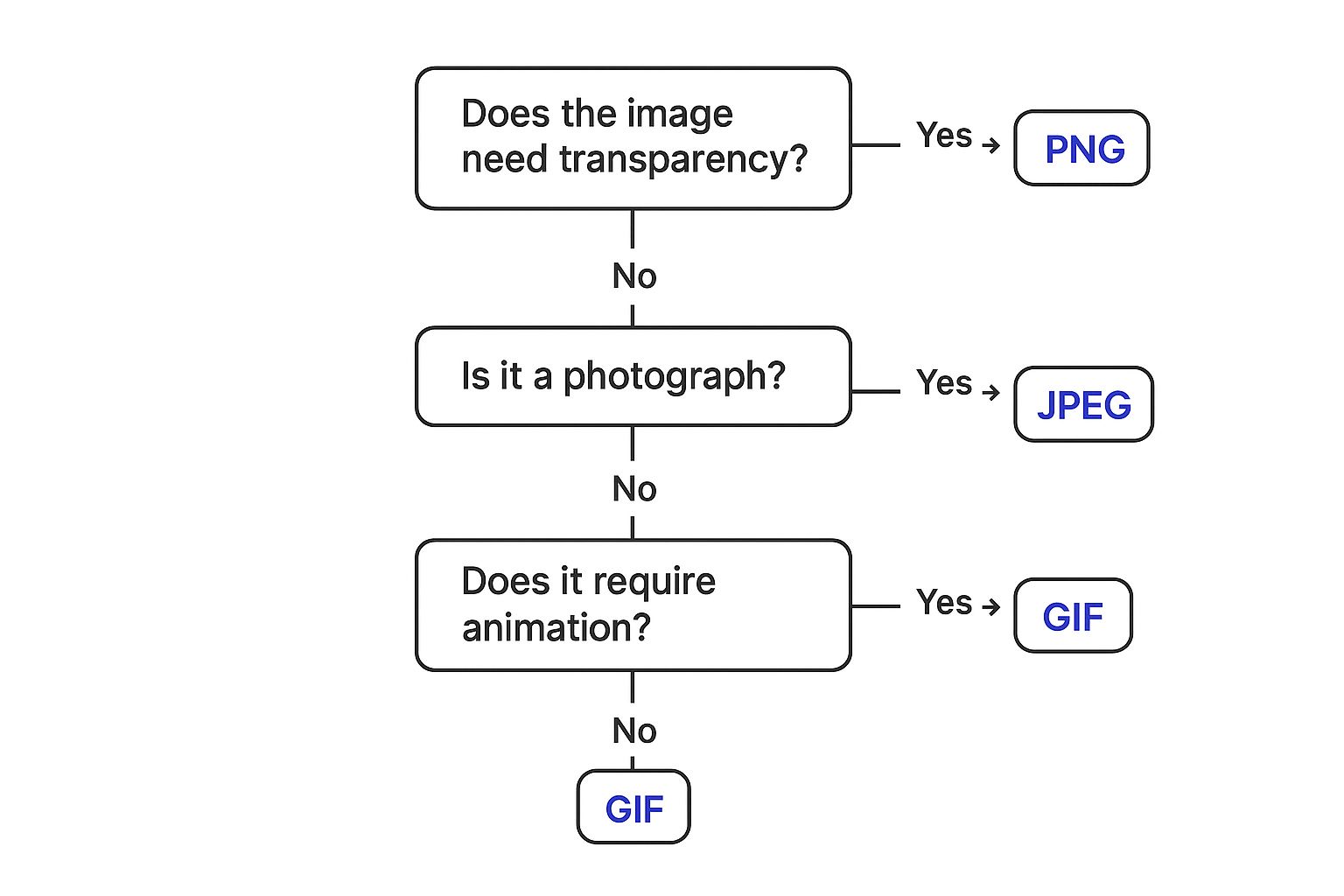
As the visual shows, the three classic decisions boiled down to transparency (PNG), photography (JPEG), and animation (GIF). Of course, modern formats like WebP now handle all these tasks far more efficiently.
Logos and Icons
Logos and icons have to be perfect. They need to stay razor-sharp whether they're a tiny favicon or a massive header graphic. They represent your brand, and any pixelation or blurriness just looks unprofessional.
Honestly, there’s only one right answer here: SVG (Scalable Vector Graphics). Since SVGs are vector-based, they are built on mathematical points, not pixels. This means they can scale to any size imaginable without losing an ounce of quality. They also happen to have incredibly small file sizes and can be animated or styled directly with CSS, opening the door for cool interactive effects like hover-state color changes.
In the rare event you’re stuck with an ancient CMS that won’t let you upload SVGs, a high-quality PNG is your next best bet. It will keep your logo's edges clean and supports full transparency.
To bring all these recommendations together, the table below provides a quick-reference guide for choosing the right image format based on what you're trying to accomplish.
Image Format Recommendations by Use Case
This table matches common web content with the best primary and fallback formats, along with the key reasons for each choice.
| Use Case | Primary Format Recommendation | Fallback Format | Key Considerations |
|---|---|---|---|
| Hero Images & Banners | WebP or AVIF | JPEG | Modern formats offer a superior quality-to-size ratio. JPEG ensures universal compatibility. |
| E-commerce Product Photos | WebP (Lossless) | PNG-24 | WebP is smaller and supports transparency. PNG is the best high-quality fallback for transparency. |
| General Website Photos | WebP | JPEG | WebP provides significant file size savings (25-35% vs. JPEG) for faster page loads. |
| Logos & Icons | SVG | PNG | SVG is infinitely scalable and tiny. PNG is the best pixel-based fallback for sharp lines. |
| Animated Graphics | GIF or WebP (Animated) | – | GIF has universal support. WebP offers superior color and smaller files but isn't supported everywhere. |
| Graphics with Text | PNG or WebP (Lossless) | – | Lossless formats prevent compression artifacts around text, keeping it sharp and readable. |
| Screenshots & Diagrams | PNG | JPEG | PNG is lossless and ideal for sharp lines and text. JPEG can work if file size is a major concern. |
Think of this table as your cheat sheet. The goal is to use the most efficient format that modern browsers can handle, while always having a reliable backup plan so no visitor is left behind. This "progressive enhancement" approach ensures your site is both fast and accessible.
Alright, let's break down how to actually use these modern image formats on your site without breaking things for people on older browsers. It's one thing to know AVIF and WebP are great, but it's another to put them to work correctly.
The secret weapon here is the HTML <picture> element. Think of it as a smart container for your images. You give it a few different versions of your image, and the browser picks the best, most modern format it can handle. It’s a clean, native HTML solution—no complicated scripts needed.
This ensures everyone gets a fast experience, whether they're on the latest version of Chrome or an older browser that's never heard of AVIF.
Using the HTML Picture Element
Putting the <picture> element into practice is surprisingly simple. You just list your image sources in order of preference, starting with the newest, most efficient format and ending with a universal fallback. This is a classic "progressive enhancement" strategy: modern browsers get the best, and older browsers still get a perfectly good image.
Here’s what that looks like in your code. We'll serve an AVIF file first, then fall back to WebP, and finally to a good old JPEG for universal compatibility.

Here's how the browser reads that:
- First, it asks, "Do I support
image/avif?" If yes, it loadsimage.avifand stops right there. - If not, it moves on: "Okay, what about
image/webp?" If it supports WebP, it loadsimage.webp. - If both of those fail, it ignores the
<source>tags and just loads the standard<img>tag withimage.jpg. Every browser on the planet understands this, so you're covered.
The
<picture>element is a native HTML solution for responsive images and format fallbacks. It puts control back in your hands, allowing you to serve the smallest possible file size without leaving any user behind.
This method isn't just about speed; it's about future-proofing your website. Keeping your site performant is a key part of the latest website design trends, which are all leaning heavily into efficiency and user experience.
Automating with CDNs and Plugins
Now, manually creating three versions of every single image and writing the <picture> code by hand sounds like a lot of work. And it is. Thankfully, you can automate this whole process.
-
Content Delivery Networks (CDNs): Services like Cloudflare, Akamai, or Fastly are brilliant for this. They can automatically convert your images to modern formats and serve the right one based on the user's browser. You just upload your standard JPEGs or PNGs, and the CDN handles the conversion and delivery of AVIF or WebP on the fly. You don't have to touch your
<img>tags at all. -
WordPress Plugins: If you’re running a WordPress site, optimization plugins are a true lifesaver. There are dozens of plugins that will automatically create WebP (and sometimes AVIF) versions of your uploaded images and serve them using the
<picture>method. For a deeper dive on this, check out our full guide on how to optimize a WordPress site.
By using modern formats with a solid fallback plan, you guarantee that every visitor gets the best possible version of your site that their browser can support. It’s a foundational piece of any serious web performance strategy.
Still Have Questions About Image Formats?
I get it. When you're trying to squeeze every last bit of performance out of a webpage, the nuances between image formats can feel a little overwhelming. Let's clear up some of the most common questions I hear so you can make your choice with confidence.
Is WebP Always Better Than JPEG?
For most things you'll do on the web, yes. WebP is an absolute workhorse, typically shrinking file sizes by 25-35% compared to a JPEG of similar visual quality. That kind of savings directly translates into faster-loading pages, which is a win for everyone.
Of course, JPEG is still the old reliable. Its universal compatibility makes it a safe bet if you absolutely have to support ancient browsers or systems where you just can't count on modern format support. While some photographers might argue for a high-quality JPEG for intricate, detailed shots, I'd still lean on WebP for general web performance nearly every time.
When Should I Absolutely Use PNG Instead of WebP?
Stick with PNG when perfect, pixel-for-pixel lossless quality is something you can't compromise on. Think logos with sharp edges, graphics that include crisp text, or any design where every single detail has to be flawless. Here, fidelity is more important than file size.
While WebP does have a lossless mode, PNG has been the undisputed industry standard for this for years. It’s also your safest fallback for transparent images if you have the rare requirement to support very old browsers that don’t understand the
<picture>element.
What Is AVIF and Should I Start Using It Now?
AVIF is the new kid on the block, and it's incredibly promising. It delivers even better compression than WebP, which means you can get even smaller files for the same level of quality. It's definitely a peek into the future of web performance.
But, its browser support, while growing, isn't quite as widespread as WebP's yet. My advice? Start using it now, but do it smartly. Implement AVIF using the <picture> element, and provide fallbacks to WebP and then JPEG. This approach lets you serve the most efficient format to users on modern browsers without leaving anyone with a broken image.
Ready to build faster, more engaging websites without code? Explore how Exclusive Addons can transform your Elementor workflow with over 108 powerful widgets and extensions. Start building with Exclusive Addons today!