
If you're a creative, your portfolio is more than just a gallery of your work—it's your digital storefront, your brand headquarters, and your primary sales tool all rolled into one. And the platform you build it on matters. A lot. Using WordPress gives you total control over your brand and the kind of design flexibility that you just can't get anywhere else.
It's the go-to platform for a reason. It scales with your career, transforming from a simple gallery into a full-blown business hub without ever locking you into a system you don't own.
Why WordPress Is The Smart Choice For Your Portfolio

Before we jump into the nuts and bolts of building your site, let's talk about why so many successful creatives lean on WordPress. This isn't just about picking a website builder; it's about investing in a platform that grows with you and gives you complete, undisputed ownership of your online presence.
Unlike those "all-in-one" builders that can suddenly change their pricing, features, or even their terms of service, WordPress is open-source. That means you own everything: the design, the functionality, and most importantly, your content. You're not just renting a digital space; you're building your own studio from the ground up.
Complete Creative Freedom
The biggest draw for any creative professional is the sheer, unadulterated freedom WordPress offers. You're never boxed into a rigid template or stuck with a limited set of features. With the right tools, you can build a site that is a true extension of your unique artistic vision.
This flexibility is powered by a massive ecosystem of themes and plugins. Page builders, in particular, have completely changed the game, letting you design with simple drag-and-drop controls instead of wrestling with code. This is where a tool like Elementor shines, handing you a visual canvas to craft your pages exactly how you see them in your mind.
If you're exploring your options, checking out a breakdown of the best WordPress free page builder choices is a great way to see what clicks with your personal style.
Scalability For Your Career Growth
Right now, your portfolio might just be a curated gallery of your best projects. But what about next year? Or the year after that? You might decide to add a blog to share your creative process, set up a private client portal for project management, or even launch an online store to sell prints and digital assets.
With WordPress, that kind of growth is seamless. Your site can evolve from an elegant showcase into a complex, multi-faceted business platform without forcing you to migrate everything or start from scratch.
The real benefit here is that you're future-proofing your brand. You're building on a foundation that can adapt to any new direction your creative career takes, ensuring your website remains a central asset, not just a temporary solution.
To put it simply, WordPress offers a powerful combination of ownership, flexibility, and community support that's hard to beat. Here’s a quick look at why it’s such a solid choice for creatives.
Key Advantages Of WordPress For Portfolio Websites
| Feature | Benefit For Your Portfolio |
|---|---|
| Open-Source Platform | You have complete ownership of your site and content. No monthly fees for the core software, and you're never locked into a single provider. |
| Limitless Customization | Thousands of themes and plugins let you build a site that truly reflects your personal brand and artistic style, without needing to code. |
| Drag-and-Drop Builders | Tools like Elementor make it easy to design complex layouts visually, giving you total control over every pixel on the page. |
| Built-in Blogging | Easily add a blog to share your process, attract new clients through content marketing, and establish yourself as an expert in your field. |
| Scalable Functionality | Start simple and add features as you grow. Want an e-commerce shop, a booking system, or a client portal? There's a plugin for that. |
| Strong SEO Foundation | WordPress is built with search engines in mind, giving you a head start on getting your portfolio discovered by the right people. |
This powerful foundation is what makes WordPress such a reliable partner for your creative journey.
Unmatched Customization And Control
There's a reason WordPress powers over 43% of all websites on the internet. This massive user base fuels an incredibly active and innovative community. Think about it: there are over 59,000 free plugins available, offering solutions for just about any function you can dream up.
Whether you want to add stunning interactive galleries, buttery-smooth animated sliders, or seamless social media feeds, you can create a rich, engaging experience for anyone who lands on your site. For more insights on this massive ecosystem, resources like Hostinger's tutorials offer a great deep dive.
Setting Up Your Creative Foundation
Alright, with the "why" out of the way, it's time to roll up our sleeves and start building. This initial setup is, in my experience, the most critical part of the whole process. Getting these first steps right is like pouring a solid foundation for a house—it ensures everything you build on top of it is stable, secure, and professional from day one.
The first two pieces of this puzzle are your domain name and your web hosting. Think of it this way: the domain is your street address (like yourname.com), and hosting is the plot of land where your website actually lives.
Choosing Your Hosting and Domain
For a portfolio site, which is almost always loaded with high-resolution images and visual media, your hosting choice matters. A lot. I've seen slow load times kill a potential client's interest before the first project image even appears. You absolutely need a provider that’s built for speed and reliability.
After deciding on WordPress, the next move is to secure solid WordPress website hosting. Don't just go for the cheapest option; look for these non-negotiable features:
- SSD Storage: This is way faster than old-school hard drives, which is a game-changer for media-heavy sites like ours.
- Good Uptime Guarantees: You want your portfolio to be online and working 99.9% of the time, period.
- One-Click WordPress Installation: This saves you a ton of technical headaches and gets you to the fun design part much faster.
When it comes to your domain name, keep it professional, memorable, and easy to spell. Usually, your own name or your studio's name is the safest bet. It's a core piece of your brand, so don't rush it.
Navigating The WordPress Dashboard
Once you run that one-click installation, you’ll land on the WordPress dashboard. It can look like a lot at first, but don't get overwhelmed. We only need to tweak a few key settings to get a solid base to build from.
Your first stop should be Settings > General. Here, you'll set your Site Title and Tagline. This is what people—and search engines—see first, so make it count. A photographer, for instance, might use:
- Site Title: Jane Doe Photography
- Tagline: Capturing Authentic Moments & Brand Stories
Next up is a crucial step that so many beginners miss. Head over to Settings > Permalinks.
By default, WordPress uses a "Plain" URL structure that looks like
yoursite.com/?p=123. This looks amateur and is terrible for SEO. You need to change this immediately to the "Post name" option. This creates clean, easy-to-read URLs likeyoursite.com/about-me, which looks far more professional.
With just those simple adjustments, you've set up a stable, correctly configured canvas. Now, you can dive into the creative part—actually designing your portfolio—without worrying about fixing technical missteps down the road.
Choosing Your Portfolio Toolkit
Okay, with your fresh WordPress site ready to go, it's time to load it up with the right creative tools. Think of a stock WordPress installation like a clean, empty artist's studio. It's functional, but you still need your brushes, paints, and canvases to actually make something.
For this project, we're going with a powerhouse combination that gives you a ton of design flexibility without the big price tag.
We'll be focusing on two specific plugins: the Elementor page builder and Exclusive Addons for Elementor. This pairing is pretty much the secret sauce for building a highly custom portfolio site in WordPress. It gives you professional-level design power through a simple drag-and-drop interface—no coding required. That means you can put all your energy into the visuals and how you present your work.
Installing Your Design Powerhouse
Getting these tools set up is super straightforward, and you can do it right from your WordPress dashboard. No need to download files from other websites.
First, head over to Plugins > Add New in the left-hand menu. In the search bar, just type "Elementor" and hit enter. The official Elementor Page Builder should be the very first result. Click "Install Now," wait a second, and then click "Activate."
Now, do the exact same thing for "Exclusive Addons for Elementor." Search, install, and activate. Once those two are live, you've got the foundation for everything we're about to build.
The real magic here is how Exclusive Addons supercharges the free version of Elementor. While Elementor's free plugin is fantastic on its own, Exclusive Addons unlocks a massive library of extra widgets and design elements, basically giving you premium features for free.
This combo gives you a level of control that rivals those expensive, all-in-one website builders. You're getting the best of both worlds: the power and flexibility of open-source WordPress and the dead-simple experience of visual design.
Why This Specific Pairing Works So Well
Let's be honest, the world of web design has shifted hard towards visual, code-free building. Just look at Elementor—it now powers over 8 million users. That's a clear signal that people, especially creatives, want intuitive drag-and-drop design so they can build a pro-level portfolio without having to become a developer first.
On top of that, these tools play nicely with other platforms like WooCommerce, which is used by 4.6 million online stores. This means if you ever decide to sell prints, digital downloads, or services, you can easily integrate a shop right into your portfolio. You can see more stats on just how big the WordPress ecosystem is over at Magecomp's statistical breakdown.
By pairing the world's most popular page builder with a feature-packed addon like Exclusive Addons, you're creating a toolkit that is both powerful and efficient. You aren't weighed down by a bloated, confusing theme. Instead, you've got a lean, fast setup with a huge selection of design options ready to go.
Alright, with all the essential tools installed and ready to go, it's time for the fun part: actually building the pages that will form the heart of your online presence. We'll zero in on the three pillars every creative portfolio needs: a killer homepage, a genuine 'About Me' page, and a slick, interactive portfolio gallery.
This is the point where setup ends and creation begins.
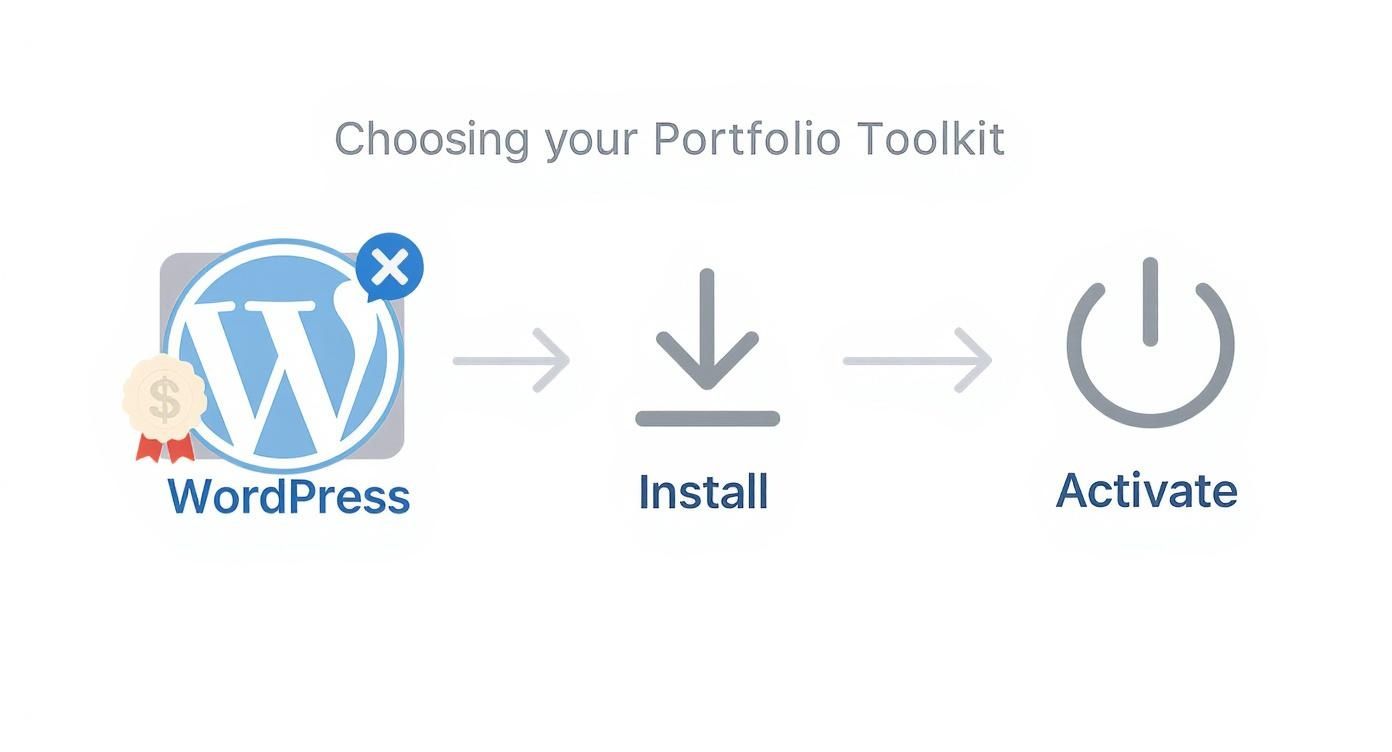
As you can see, getting the foundation right is a straightforward path. Now, let's build on it.
Crafting A High-Impact Homepage
Think of your homepage as your digital handshake. It has just a few seconds to tell visitors who you are, what you do, and why they should care enough to click further. We'll use Elementor's drag-and-drop magic to piece this together.
First, create a new page in WordPress and fire up the Elementor editor. The very first thing visitors see is what we call the "hero" section. This needs to pack a punch. Drop in your strongest visual, a sharp headline that defines your niche (like "Brand Identity & Web Design"), and a can't-miss call-to-action button—something like "View My Work."
Just below that, it's time for some social proof. Use an Icon Box widget to spotlight your key services, then drag in a Testimonial widget from Exclusive Addons to let your happy clients do the talking. A great portfolio isn't just a gallery; it’s a trust-building machine from the moment the page loads.
Designing An Engaging About Me Page
This is where you stop being just a name on a screen and become a person. The 'About Me' page is your chance to connect, so please, avoid the dry, resume-style list of achievements. Tell your story instead.
Here’s a simple, effective structure you can build out in Elementor:
- The Opener: Kick things off with a professional, high-quality photo of yourself. Place it next to a headline and a couple of short paragraphs that share your passion and what drives you.
- Skills & Experience: Instead of a boring bulleted list, use Progress Bar widgets to visually show off your key skills (think Photoshop, Figma, Branding). It’s so much more engaging.
- The Ask: Wrap up the page with another clear call to action. Guide them to your contact page or, even better, circle back to your portfolio.
Building A Dynamic Portfolio Gallery
Now for the main event. A simple grid of images is okay, but an interactive, filterable gallery? That’s next-level. It’s more professional, more user-friendly, and it’s where Exclusive Addons really flexes its muscles.
We're going to use the Filterable Gallery widget. This is a game-changer. It lets potential clients sort your projects by category—like "Web Design," "Illustration," or "Logos"—with a single click. This small bit of organization shows off your range without overwhelming the visitor.
When you let a client instantly filter for the work most relevant to them, you’re not just showing your projects; you’re respecting their time. This single feature dramatically boosts the user experience and screams professionalism.
To get this working, you'll need to categorize your projects first. A lot of pros find it helps to learn about https://exclusiveaddons.com/wp-custom-post-types/ to keep their portfolio items neatly organized on the back end.
Once they're categorized, you can pull them into the Filterable Gallery widget and style it to perfectly match your brand's look and feel. And if you're really looking to master the page builder, check out these additional tips for Elementor.
With these three core pages built, you've officially laid a strong, professional foundation for your online portfolio. You're ready to add the finishing touches and get this thing launched.
A functional portfolio gets you noticed, but a beautifully styled one? That's what gets you remembered.
This is where we move beyond just plopping your work onto a page and start building a genuine brand experience. It’s all about the small details that, when combined, create a cohesive and professional look that feels uniquely you.
Elementor’s global settings are your command center for this. Instead of tweaking colors and fonts on every single element (what a nightmare!), you can set up a consistent design system that applies across your entire site. Trust me, this saves an incredible amount of time and makes your branding rock-solid.
Establishing Your Visual Identity
Your first stop should always be the Site Settings panel in Elementor. Find Global Colors and Global Fonts—think of these as the DNA of your site's visual style. Setting these up first is a non-negotiable step if you want a professional finish.
For your color palette, start by defining four key colors: a primary, secondary, text, and accent color. A photographer, for example, might go with a deep charcoal for text, a clean white for backgrounds, a subtle earthy tone as a secondary color, and a vibrant gold as an accent for buttons and links. This simple setup ensures every new widget you add automatically falls in line with your look.
When you're picking colors, remember they communicate a feeling. Bright, bold colors might be perfect for a graphic designer, while a more muted, monochromatic scheme could be ideal for a fine art photographer. Consistency is what makes a design feel intentional and polished.
If you want to get more strategic with your choices, brushing up on the basics of color theory in web design can be a huge help. It’s the difference between picking colors that just look nice and picking colors that actually work for your brand.
Before we move on, let's talk widgets. A portfolio isn't just one big image gallery; it's a collection of different elements that tell your story. Choosing the right widgets from the start will make the entire building process smoother.
Here’s a quick rundown of some essential widgets you’ll likely be using from both Elementor and Exclusive Addons and why they’re great for a portfolio.
Essential Elementor Widgets For Portfolios
| Widget Name | Primary Use Case | Plugin Source |
|---|---|---|
| Image Gallery | The classic way to showcase a collection of your visual work in a grid or masonry layout. | Elementor |
| Filterable Gallery | Allows visitors to sort your projects by category (e.g., "Web Design," "Branding"). | Exclusive Addons |
| Testimonial | Builds social proof by displaying quotes from happy clients. Absolutely crucial for trust. | Elementor / Exclusive Addons |
| Call to Action | A dedicated button or section to guide visitors to your contact page or service inquiry form. | Elementor |
| Animated Text | Adds a touch of dynamic flair to your headlines, making your "About Me" or hero section pop. | Exclusive Addons |
| Contact Form 7 | Integrates the popular Contact Form 7 plugin seamlessly into your design for easy inquiries. | Exclusive Addons |
Using a mix of these tools, you can create a portfolio that's not just a gallery but a complete, interactive experience for potential clients.
Polishing The Finer Details
Once your core colors and fonts are locked in, it's time to zoom in on the micro-interactions and spacing that separate an amateur site from a pro's. This is where you add that layer of polish that makes your portfolio feel dynamic and really well-crafted.
- Subtle Hover Effects: Add a slight "Grow" or "Fade" hover animation to your portfolio items. It's a small touch, but it provides instant visual feedback and encourages people to click and explore.
- Consistent Spacing: Jump into the Advanced tab in Elementor to adjust your margins and padding. Instead of just guessing, try using consistent values (like 20px for inner padding and 60px for section margins) across your site. It creates a clean, organized layout that's easy on the eyes.
These tiny adjustments create a sense of rhythm and flow, guiding the visitor's eye right where you want it to go.
Ensuring A Flawless Mobile Experience
Okay, last but certainly not least: never, ever forget that over 50% of web traffic now comes from mobile devices. A portfolio that looks incredible on a desktop but is a jumbled mess on a phone is a massive missed opportunity.
This is where Elementor’s Responsive Mode becomes your best friend.
At the bottom of the Elementor panel, you'll see little icons to switch between desktop, tablet, and mobile views. As you switch, you can adjust settings like font sizes, margins, and even column order specifically for that device. What looks like a perfect three-column grid on a desktop might need to be a simple single column on a phone, and you can make that change without breaking your desktop design. This final check ensures your hard work looks fantastic, no matter how someone finds you.
Your Pre-Launch Final Checks
You're on the home stretch. Your pages are built, your work is absolutely shining, and you're just about ready to share your masterpiece with the world. But before you hit that big, glorious "Publish" button, let's run through a quick pre-flight checklist.
These final steps are what separate a "designed" site from a truly "professional" one. They're the small details that make a massive difference in how people experience and discover your work, ensuring your launch is as smooth as it is successful.
https://www.youtube.com/embed/ZC37jl0lRF8
Optimizing For Search Engines (and People)
First things first: let's make sure potential clients can actually find you. We'll tackle some basic but incredibly powerful Search Engine Optimization (SEO). The easiest way to get this done is with a free plugin like Yoast SEO or Rank Math. Once you've got one installed, you’ll see a new section pop up in your page editor.
Here’s what you need to zero in on:
- Meta Title: This is the headline that shows up in Google search results. Make it crystal clear and compelling, something like "Jane Doe | Brand Identity & Web Design Portfolio."
- Meta Description: Think of this as the short blurb under the title. Briefly explain what the page is about and give people a reason to click through.
Don’t just blow past this step. A well-written meta title and description can be the single deciding factor between a potential client clicking on your site or scrolling right on by. It’s your first and only chance to make an impression in a crowded search results page.
Fine-Tuning Site Performance
Okay, next up is speed. Image-heavy portfolios are notorious for slow load times, and let's be honest, a slow site is a huge turn-off. Before you go live, run your images through an optimization tool like TinyPNG or grab a WordPress plugin like Smush to compress them automatically. This can drastically slash file sizes without a noticeable drop in quality.
Now, think about what happens when a client is blown away by your work. They need a frictionless way to get in touch. Using the Contact Form 7 widget from Exclusive Addons, you can just drag and drop a sleek, professional form right onto your contact page and style it to match your brand perfectly.
Finally, do a quick sanity check and make sure your social media icons actually link to your profiles correctly. It seems small, but it connects your new portfolio to your wider online presence, giving clients another way to engage with you. Nailing these final checks means you're launching a polished, functional site that's ready to attract business from day one.
Ready to build a stunning, high-performance portfolio without the technical headaches? Get the ultimate design toolkit with Exclusive Addons and unlock over 108 powerful widgets and extensions for Elementor today. Start building for free at https://exclusiveaddons.com.